

Appearance
An overview of smart variant selectors
This guide provides an overview of Baseline's Smart variant selectors feature.
Use the feature to show your customers which of your store's products and product option-combinations are sold out or unavailable for customers to purchase.
The previous video shows a Variant picker block on a store's Product page. The block is set to hide unavailable product variants. When the store's visitor chooses a product option, Baseline's variant selectors hide the product option-combinations that are unavailable.
By default, unavailable product option-combinations are hidden. Variant selectors associated with sold out variants are shown with a strike-through text style. For example, the following image shows the strike-through style applied to the variant picker's buttons.
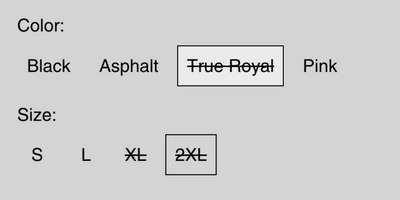
As your store's customers choose different product option-combinations, in real time, Baseline's variant selectors update which product options and combinations are unavailable or sold out.
Inside a Product section, use the Variant picker block settings to show or hide sold out and unavailable variants.
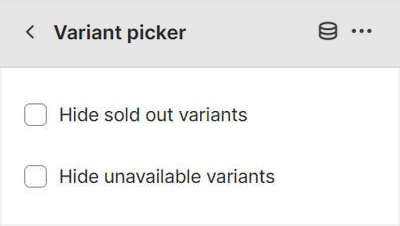
For example, the previous image shows part of Theme editor's Variant picker block settings inside a Product section. In the menu, the following checkbox options are unchecked:
- Hide sold out variants
- Hide unavailable variants
With these options unchecked (off), the section displays sold out and unavailable products.
Note
For some apps that allow customers to sign up to be notified when a product is back "in stock", you might be required to enable the option to show sold out variants.