

Appearance
Image sections
Show images in galleries, single photos with text or slideshows on your homepage.
Gallery
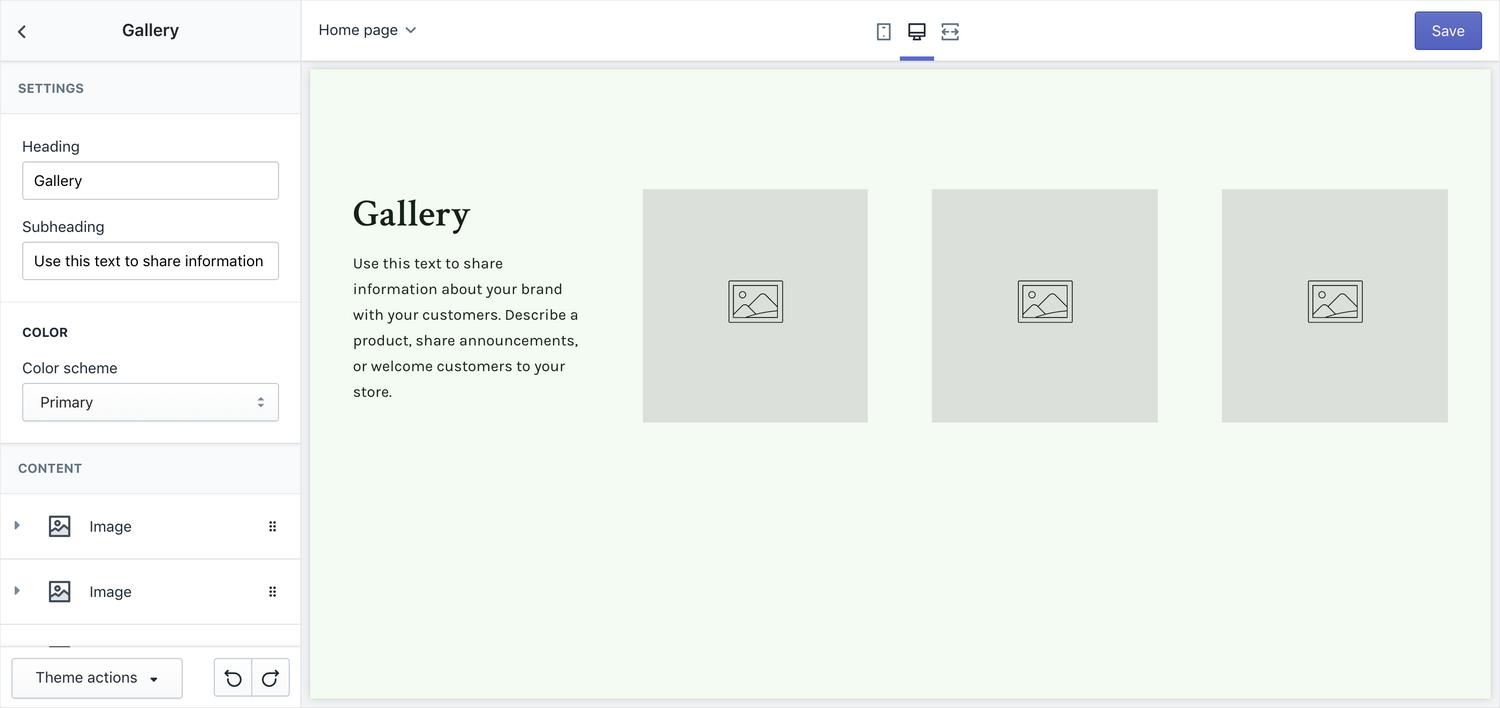
Show a gallery of images on your homepage.
Settings
- Heading – edit the section's heading
- Subheading – edit the section's subheading
Images
Add up to 8 images. The layout will adjust automatically based on the number of images in the section.
Settings
- Image – choose an image to display
- Link (optional) – turn the image into a link
- Caption (optional) – add a caption
Image with text
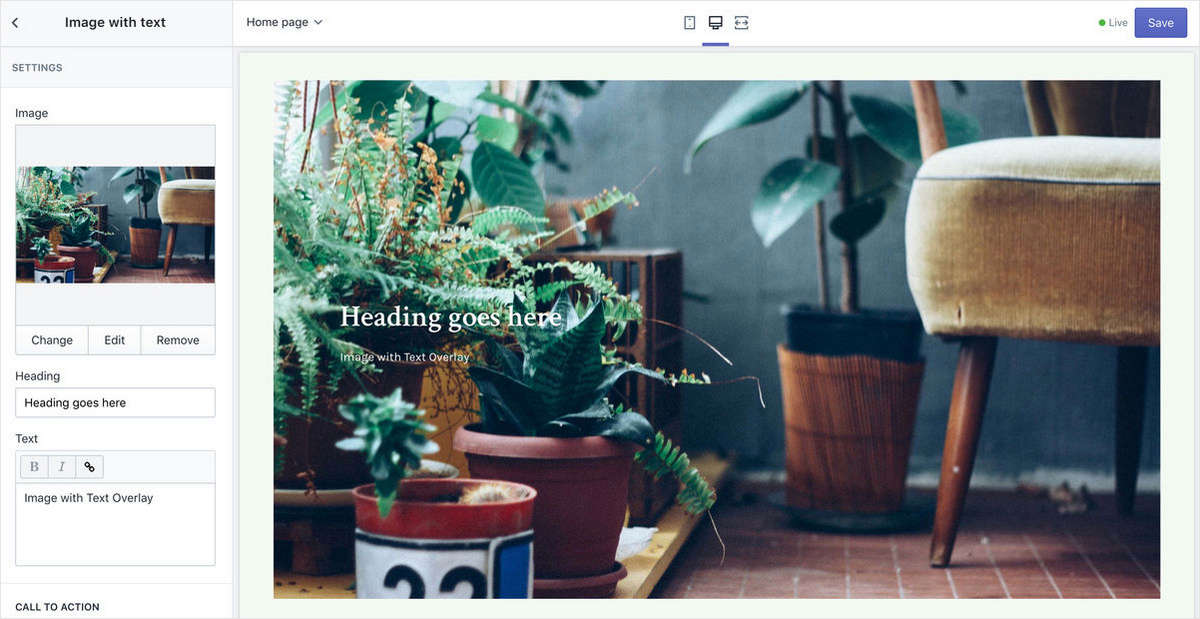
Show a full screen image on the home page with text.
Settings
- Image - choose the image to be used
- Heading - heading for the slide
- Text - add in additional text
Call to Action
- Link - the CTA link
- Button text - the text for the CTA button
Text overlay
- Content position - where the content will sit over the image
- Text alignment - choose between left, center and right text alignment
- Text color - choose the text color for when text is over the image (desktop only)
Image with text columns
Show up to four images on the home screen with text underneath the images.
Content
- Image - choose the image to be used
- Text - add in text to be placed underneath the image
Settings
- Heading - heading for the slide
- Enable horizontal scrolling on mobile - Allows for the images to be viewed one by one while scrolling on screens to small to show all the images
- Call to action link - the CTA link
- Call to action button text - the text for the CTA button
- Text alignment - choose between left, center and right text alignment.
- Color Scheme - choose the text color
Slideshow
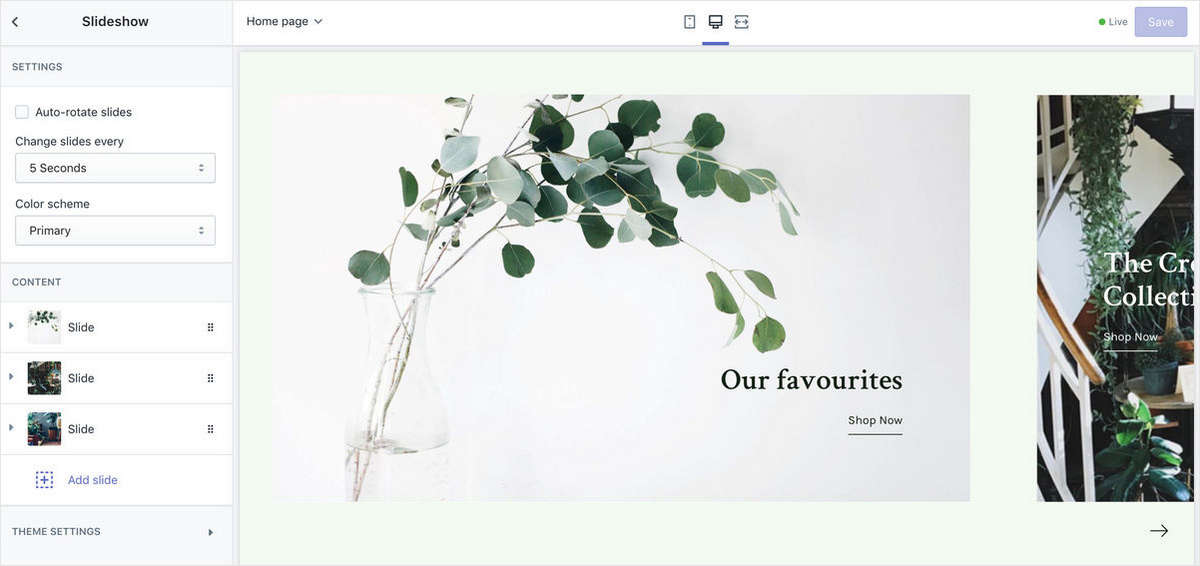
Show a slideshow on the home page.
Settings
- Auto-rotate slides - enable this to have your slides change automatically.
- Change slides every _ seconds - select how long it takes for slides to change if "auto-rotate slides" is enabled
- Color scheme - the color scheme for the slideshow.
Slides
- Image - choose the image to be used in the slide.
- Heading - heading for the slide
- Subheading - add in a subheading
Call to Action
- Link - the CTA link
- Button text - the text for the CTA button
Text overlay
- Content position - where the content will sit over the image
- Text alignment - choose between left, center and right text alignment.
- Text overlay - choose the text color for when text is over the image (desktop only).