

Appearance
Testimonials
This guide describes how to set up the Testimonials section.
Use the section to display comments from customers, clients, and staff.
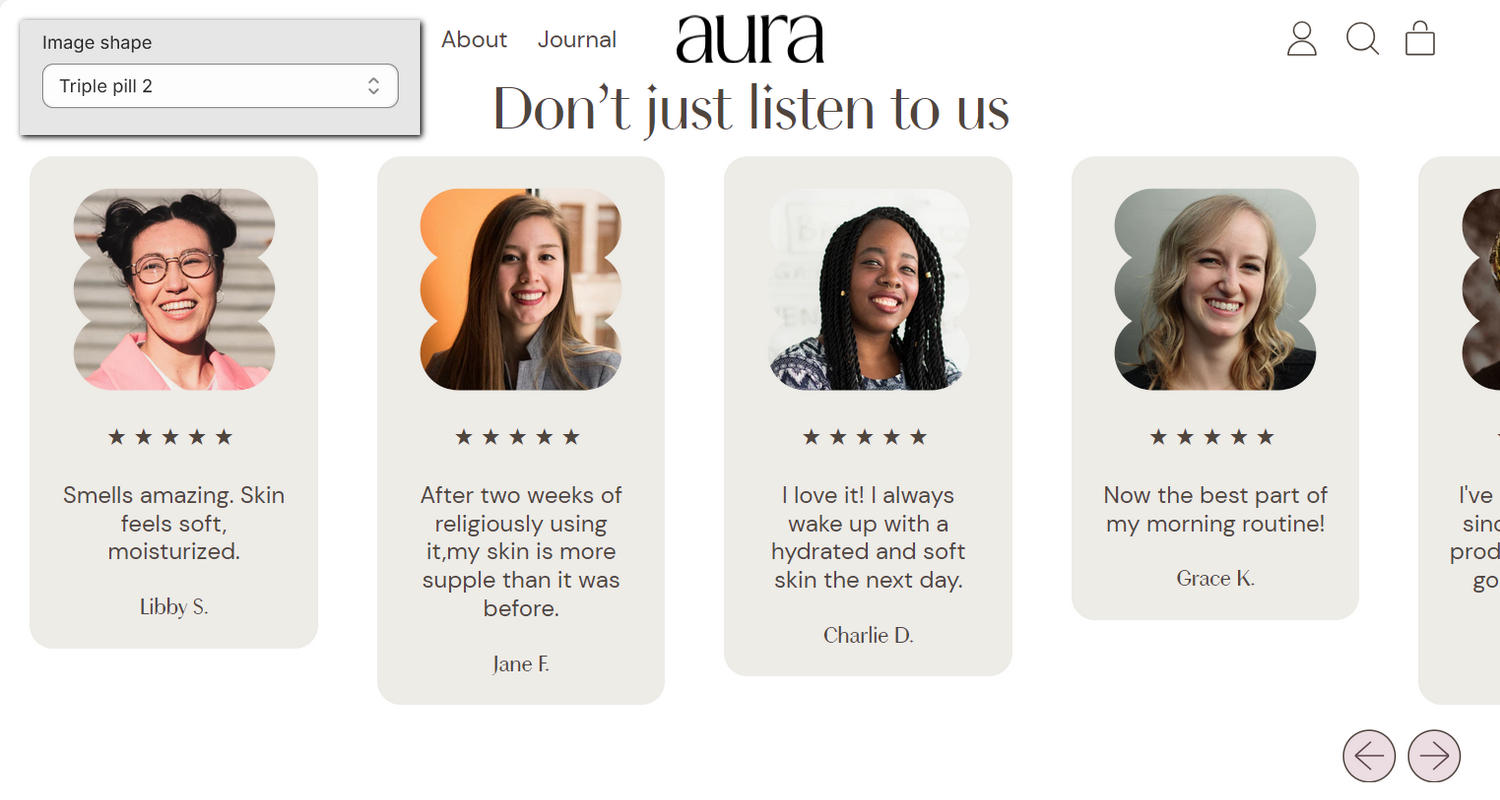
The previous image shows an example store's home page. In the upper left, part of the Theme editor's Testimonials section menu is displayed. The menu's Shape option is set to Triple pill 2. This option specifies a shape for images in the section. For example, in the previous image, the Triple pill 2 shape is applied to the image inside each of the section's testimonial blocks.
For general guidance with modifying sections, refer to Sections overview and Shopify help: Sections and blocks.
Configure the Testimonials section
To configure your Testimonials section:
In the Theme editor, at the top of the page, use the dropdown to select a page that contains a Testimonials section.
Note
The section can be added to any page, except Gift card and Customer pages. To add the section to the current page, select Add section > Testimonials. Refer to Shopify help: Add a section.
From the side menu, select Testimonials.
Select a setting described in the following table.
| Setting name | Description |
|---|---|
| Display on card | Use the Display on card option to show or hide a card behind the section. Refer to Shopify help: Cards. |
| Images max width | Adjust the Images max width slider between 50 and 500 pixels to specify a maximum width for the section's images. |
| Shape | Use the Shape options to select a shape for images in the section. For example, select Default, Diamond, Rounded nonagon, or Star 1. Selecting some shapes will crop the image. Refer to Style images and videos with shapes. |
| Crop | Use the Crop options to select No crop, Landscape, Square, or Portrait to specify a cropping style for the images in the section. To use this option, set the Shape option to one of the "Fit to image" shapes. |
| Disable media style | Use the Disable media style option to turn on or off showing the styles applied to the section's media. Recommended if you are using images with a transparent background for testimonials. |
| Desktop slide width | Adjust the Desktop slide width slider between 20 and 60 percent to specify a width for the section's blocks on desktop display devices. |
| Autoscroll mode | Use the Autoscroll mode options to set the section's blocks to move from Right to left or Left to right automatically. To turn off automatic scrolling mode, select Disabled. |
| Header > Title | In the Title field, enter text to display as the section's heading. Format the text and add links using the inline editor. |
| Header > Subheading | In the Subheading field, enter text to display as the section's subheading. Format the text and add links using the inline editor. To use this option, enter text in the Title field. |
| Color > Color scheme | Use the Color scheme picker to select a color scheme for the section. Refer to Colors. |
| Color > Use gradient for background | Use the Use gradient for background option to turn on or off using a gradient as the section's background. |
| Theme settings | If available, select Theme settings to access additional settings for the section. Refer to Section theme settings menu. |
| Custom CSS | Select Custom CSS. In the CSS field, enter custom CSS styles to apply only to the current section. Refer to Shopify help: Add custom CSS. To apply custom styles to your entire online store, refer to Theme settings > Custom CSS. |
| Remove section | Select Remove section to delete the section from the current page. |
Note
To connect a metafield to a setting that supports metafields, select the Connect dynamic source icon displayed beside the setting in the Theme editor.
To learn how to connect a metafield to a supported setting, refer to Shopify help: Connecting metafields to your theme by using the Theme editor.
Configure a block within a Testimonials section
To configure a block for your Testimonials section:
In the Theme editor, at the top of the page, use the dropdown to select a page that contains a Testimonials section.
From the side menu, expand the Testimonials section menu.
To configure an existing block, select the block from the side menu.
To add a new block, select Add block, choose a block to add, and then select the block you added.
Note
Inside the section, you can add, remove, show, hide, and move blocks. Refer to Configure blocks inside a section and Shopify help: Sections and blocks.
Apply a block setting described in the following table.
| Block name | Block description | Block setting(s) |
|---|---|---|
Testimonial * | Displays comment text, with an optional image, inside the section. |
|
| Background pattern | Displays a stylistic pattern as a background inside the section. | Refer to Background pattern. |
| Background shape | Displays a stylistic shape as a background inside the section. | Refer to Background shape. |
| Sticker | Overlays the section with a stylized sticker. | Refer to Stickers. |
| Shape divider | Displays a stylized separator between the current section and the next/previous section. | Refer to Shape divider. |