

Appearance
Use browser inspector tools
Note
This is an advanced customization guide that requires editing theme code. These changes are not supported by Switch Themes or Shopify. We recommend hiring an expert if you're not comfortable editing Liquid, HTML, CSS, and JavaScript.
Before you customize a theme, make a backup. Refer to Shopify help: Duplicating themes.
Your browser's inspector tools are a useful way to identify the parts of the theme code that you want to modify. This guide uses Google Chrome, but similar tools are available in other browsers. To apply this guide to another browser, check your browser's documentation. For links to documentation for other browsers, refer to Learn more.
Find an element's CSS classes and rules
To customize theme code, you must know the CSS classes and rules that apply to the element you want to modify.
To find an element's CSS classes and rules:
In a web browser, open a page with an element to modify.
Right-click the element.
Select Inspect.
Review the contents of the Elements pane.
When an element is selected in the Elements pane, its classes are displayed in the class attribute. To inspect the CSS rules that apply to the element, review the browser's Styles pane. An element can be nested inside other elements, which might also have classes or CSS rules that affect the element's appearance or behavior. Refer to Chrome developers: View and change CSS.
In the following image, the browser's inspector tools show the font-heading and leading-none CSS classes applied to the <span> element for a Featured countdown timer section.
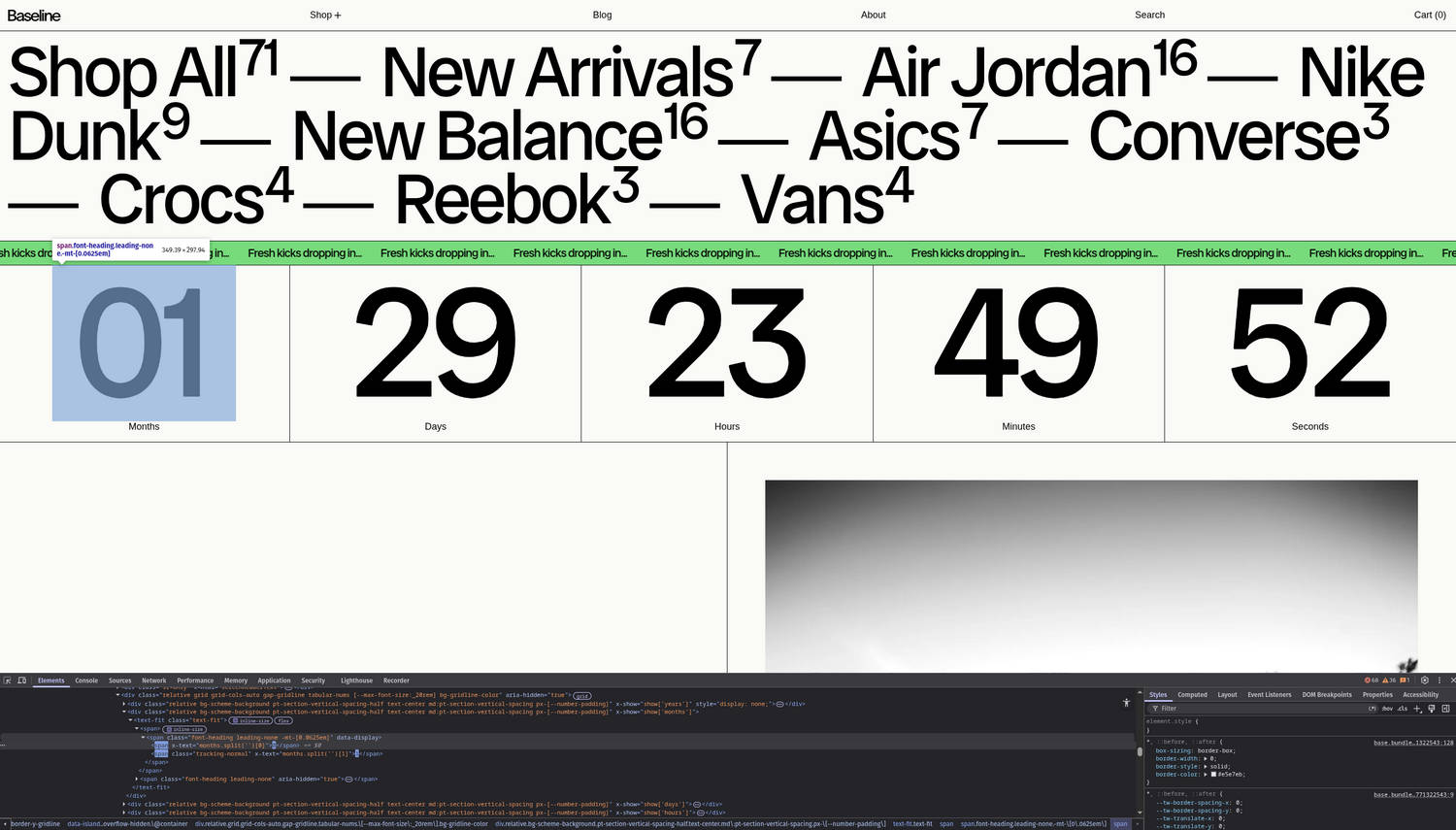
Classes and CSS properties
Baseline uses utility CSS classes, such as text-scale-n2, as well as broader structural classes such as rte.
To change how elements are styled, you can either update the element's markup in the relevant Liquid template or override its styles with custom CSS. You can inspect the relevant CSS rules in the theme code, but it's usually better to override styles with custom CSS. Refer to Use custom CSS.
For example:
To increase the font size of an element styled with
text-scale-n2, change its markup to use thetext-scale-n6class.To change the styling of rich text content inside an element with the
rteclass, inspect the relevant CSS rules and then override them with custom CSS if needed.
Learn more
Refer to the following links to developer tools and features for different browsers.