

Appearance
Create a custom template
This guide describes how to create a custom template for your store's products, collections, pages, blogs, and blog posts.
Note
For more information about customizing templates, refer to Shopify help: Templates.
To create a custom template:
- Create your template in the Theme editor
- Edit your template in the Theme editor
- Assign your template in Shopify admin
Create your template in the Theme editor
To create your template in the Theme editor:
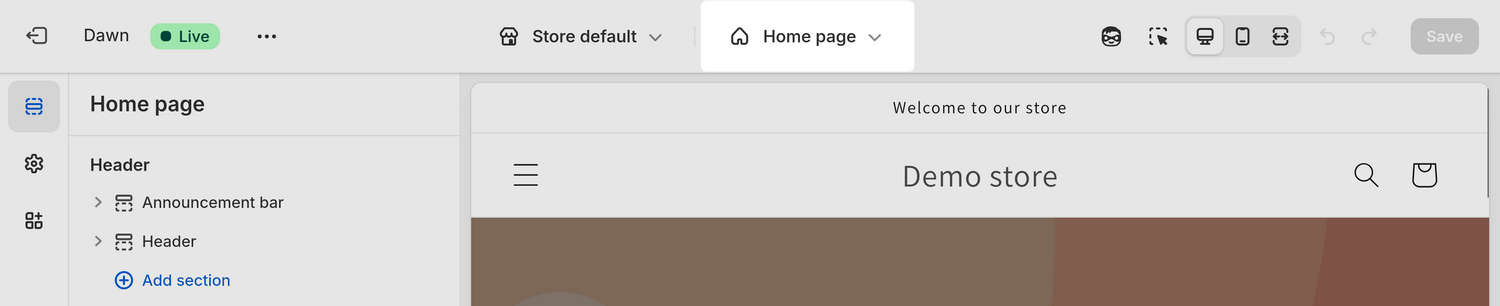
In your Shopify admin, locate the theme you want to customize, and then select Edit theme next to the theme's name to open it in the Theme editor.
In the Theme editor, use the template dropdown at the top of the page to choose a store area that corresponds to the type of template you're creating, such as Products, Collections, Pages, Blogs, or Blog posts, and then Create template.
For example, select Products > Create template.
On the Create a template pane, in the Name field, enter a name for your template. For example, enter My product template.
Use the Based on dropdown to select an existing template as a base for your new template, and then select Create template. For example, select Default product > Create template.
Edit your template in the Theme editor
To edit your template in the Theme editor:
In the Theme editor, use the template dropdown to select the template you want to edit. For example, select Products > My product template.
In the Theme editor's sidebar, add or remove sections and blocks to suit your requirements.
Select Save to save your changes.
Assign your template in Shopify admin
For your currently published theme, complete the following steps to assign your template:
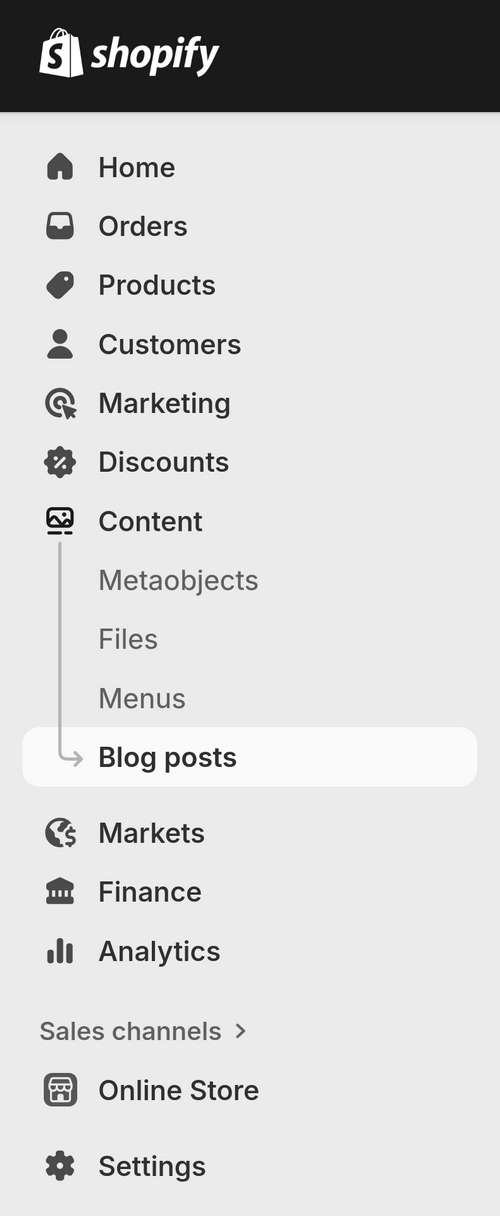
In your Shopify admin, select the menu item that corresponds to the type of template you want to assign, such as Products, Collections, Online Store > Pages, and Content > Blog posts.
For example, in the following image, the Content > Blog posts menu item is selected for assigning a template to a blog or blog post.
Select the resource that you want to apply the template to.
For example, select a specific product, collection, page, or blog post. For a blog, select Manage blogs, and then choose the blog you're applying your template to.
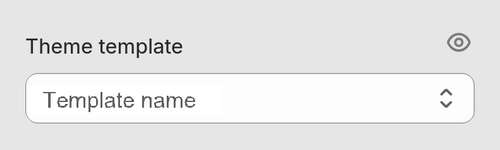
Locate the Theme template dropdown, and then select a template to apply. For example, select My product template.
Select Save to save your changes.