

Appearance
Slideshows
This guide describes the Theme settings > Slideshows menu options.
Use the menu options to set how slideshows are displayed throughout your store. Refer to Shopify help: Best practices for slideshows, image banners, and full-width images.
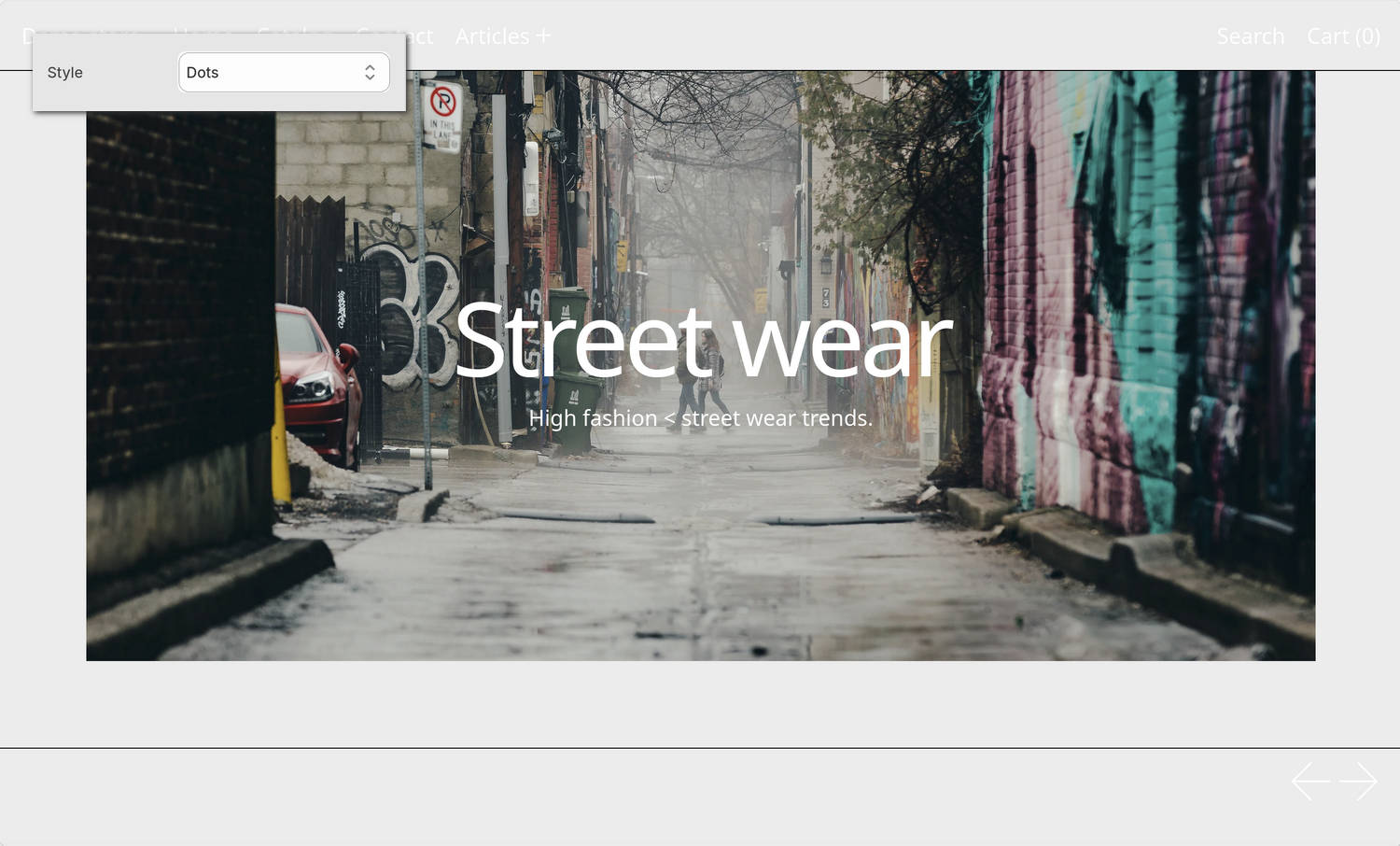
The previous image shows a Slideshow section on a store's home page. In the upper left, part of the Theme settings > Slideshows menu is displayed. The menu's Slideshow pagination > Style option is set to Dots. The dots style is applied to the paginator in the lower right. The dots indicate the store visitor's progress through the slides in a slideshow (like "Slide 1 of 3 slides", etc).
For general guidance with adjusting a theme setting, refer to Settings overview and Shopify help: Theme settings.
Set up slideshows
To set up slideshows:
In Theme editor, go to Theme settings > Slideshows.
Select a setting described in the following table.
| Setting name | Description |
|---|---|
| Slideshow pagination > Style | Use the Style options to select the visual style for the slideshow pagination indicators. Choose from options like Dots, Numbers, Lowercase letters, Uppercase letters, Lowercase roman numerals, or Uppercase roman numerals. |
| Slideshow pagination > Active page style | Use the Active page style options to select the visual style for the currently active slide indicator. Does not apply if “Pagination style” above is set to “Dots”. |