

Appearance
Image with product grid
This guide describes how to set up the Image with product grid section.
Use this section to display an image beside a selection of product tiles arranged in a grid.
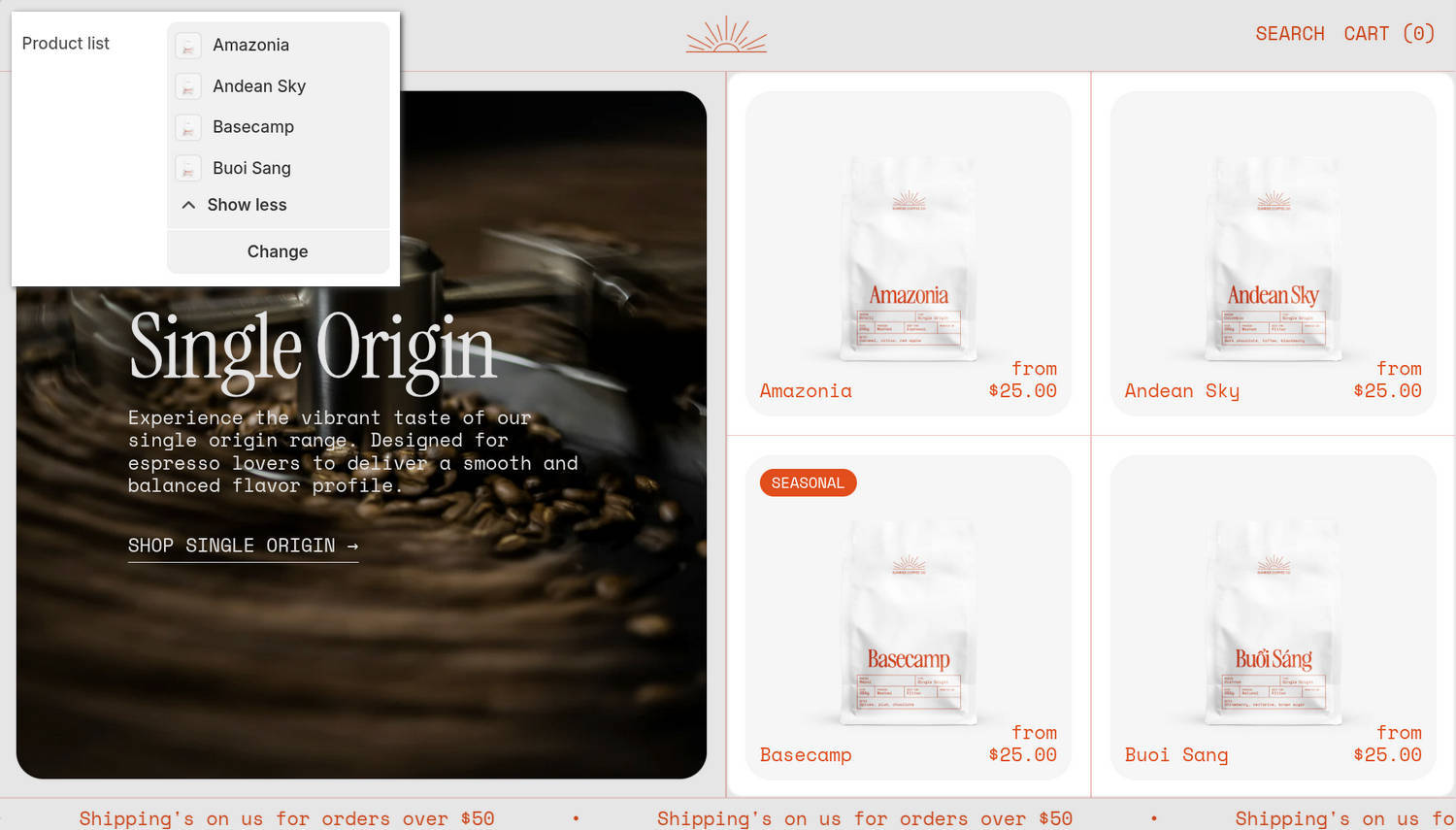
The previous image shows the home page of an example store. In the upper left, part of the Theme editor's Image with product grid section menu is displayed. Four products are selected in the section's Product list picker. On the right, the selected products are displayed as tiles inside the section.
For general guidance with modifying sections, refer to Sections overview and Shopify help: Sections and blocks.
Configure the Image with product grid section
To configure your Image with product grid section:
In the Theme editor, at the top of the page, use the theme templates dropdown menu to select a page that contains an Image with product grid section.
Note
The section can be added to any page except Checkout, Gift card, and Customer pages. To add the section to the current page, select Add section > Image with product grid. Refer to Shopify help: Add a section.
From the side menu, select Image with product grid.
Select a setting described in the following table.
| Setting name | Description |
|---|---|
| Image | Use the Image picker to select an image to display in the section. The image height adapts to the height of the product grid on desktop displays. |
| Mobile image | Use the Mobile image picker to select an image to display in the section on mobile display devices. |
| Image position on desktop | Use the Image position on desktop options to position the section's image to the Left or Right. This setting applies to desktop display devices. |
| Deep inset | Set the Deep inset option to on or off. With this option enabled, an area of empty space is displayed around the section's images. |
| Products > Product list | Use the Product list picker to select products to display as product tiles in the section's product grid area. |
| Products > Tile type | Use the Tile type options to select Standard or Text overlay. The Standard option displays a product's title and price below the product's image inside the product tile. With the Text overlay option, the product's image is overlaid with the product's title and price inside the product tile. |
| Products > Grid width on desktop | Use the Grid width on desktop options to specify a width for the section's product grid area on desktop display devices. The options are Half or One third (1–3 products) / Two thirds (4 products). |
| Quick buy > Enable quick buy | Set the Enable quick buy option to on or off. With this option enabled, quick buy options are displayed in the section's product tiles that allow customers to quickly add products to the cart. To use this option, set the Tile type option to Standard. |
| Content > Subheading | In the Subheading field, enter a single line of text to display as a subheading in the section. This option is hidden in the Theme editor if the Heading field is empty. |
| Content > Heading | In the Heading field, enter a single line of text to display as a heading in the section. |
| Content > Text | In the Text field, enter text to display as body text in the section. Use the inline text editor to format the text and add links, as needed. |
| Content > Heading size | Use the Heading size options to apply the Body, Standard heading, Feature heading, or Secondary heading text size to the section's heading text. |
| Content > Position | Use the Position options to specify a position for the section's text content. The options include Top left, Top center, Top right, Left, Center, and more. |
| Content > Width on desktop | Use the Width on desktop options to select One third, One half, Two thirds, or Full width. This setting lets you choose a width for the section's content area on desktop display devices. |
| Content > Text alignment | Use the Text alignment options to align text in the section's content area to the Left, Center, or Right. |
| Content > Content color scheme | Use the Content color scheme picker to select a color scheme for the section's content area. |
| Call to action > Link | In the Link field, enter an external URL or select a store page for the section's call to action link. The link is displayed in the section's content area. |
| Call to action > Text | In the Text field, enter a single line of text to display as a label for the section's call to action link. The link is displayed in the section's content area. |
| Call to action > Style | Use the Style option to select Link or Button. This setting lets you choose whether the call to action appears as a text link or a button. The call to action is displayed in the section's content area. |
| Call to action > Button style | Use the Button style option to apply a Primary or Secondary button style to the section's call to action button. The button is displayed in the section's content area. To use this option, set the Style option to Button. |
| Color > Color scheme | Use the Color scheme picker to select a color scheme for the section. Refer to Colors. |
| Theme settings | If available, select Theme settings to access additional settings for the section. Refer to Section theme settings menu. |
| Custom CSS | Select Custom CSS. In the CSS field, enter custom CSS styles to apply only to the current section. Refer to Shopify help: Add custom CSS. To apply custom styles to your entire online store, refer to Theme settings > Custom CSS. |
| Remove section | Select Remove section to delete the section from the current page. |
Note
To connect a metafield to a setting that supports metafields, select the Connect dynamic source icon displayed beside the setting in the Theme editor.
To learn how to connect a metafield to a supported setting, refer to Shopify help: Connecting metafields to your theme by using the Theme editor.