

Appearance
Featured menu
This guide describes setting up the Featured menu section.
Use the section to add a menu of links or buttons to a store page.
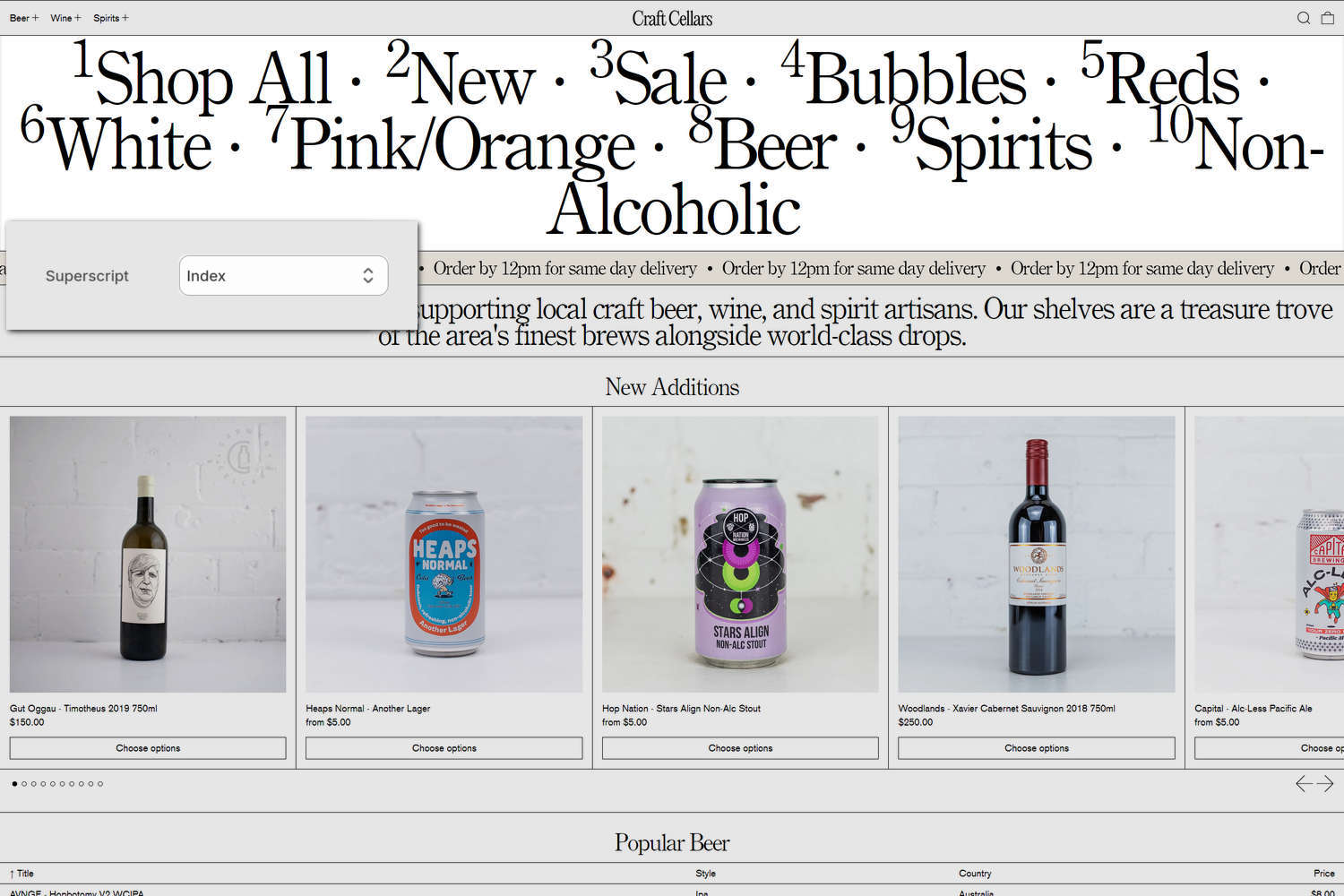
The previous image shows a Featured menu section near the top of a store's home page. On the left, below the section, part of Theme editor's section menu is displayed. The menu's Superscript option is set to Index. This setting specifies the prefix that's displayed for each menu item inside the section. The Index option prefixes each menu item with an ascending index number, like a numbered list. The first item is prefixed with 1, the second item is prefixed with 2, etc.
For general guidance with modifying sections, refer to Sections overview and Shopify help: Sections and blocks.
Set up a Featured menu section
To set up a Featured menu section:
In Theme editor, at the top of the page, use the theme templates dropdown menu to select a page that contains a Featured menu section.
Note
The section can be added to any page, except Checkout and Gift card pages. To add the section to the current page, select Add section > Featured menu. Refer to Shopify help: Add a section.
From the side menu, select Featured menu.
Select a setting described in the following table.
| Setting name | Description |
|---|---|
| Menu | Use the Menu picker to set up a menu to display inside the section. Refer to Set a menu for a Featured menu section. Note that the selected menu will not show dropdown items. |
| Mobile font size scale | Adjust the Mobile font size scale slider to set a font size for the section's menu text on mobile display devices. The minimum value is -2 and the maximum is 4. |
| Desktop font size scale | Adjust the Desktop font size scale slider to set a font size for the section's menu text on desktop display devices. The minimum value is -2 and the maximum is 9. |
| Display | Use the Display options to specify a style for displaying the section's menu items. The options are List, Paragraph, and List mobile, paragraph desktop. The List option displays the section's items as a list, with one item stacked vertically above the next item. The Paragraph option displays the items horizontally, in a single line of text, like a paragraph, with each item separated by a Paragraph word separator. The List mobile, paragraph desktop option shows the section's items as a list on mobile display devices and as a paragraph on desktop display devices. |
| Paragraph word separator | Use the Paragraph word separator setting to specify a symbol to display between menu items inside the section. The options are: None, Hyphen, Emdash, Dot, or Bullet. To use this option, set the Display option to anything other than List. |
| Superscript | Use the Superscript setting to specify a prefix or suffix to display for each menu item inside the section. To remove prefixes and suffixes, select None. The Index option prefixes each menu item with an ascending index number, like a numbered list. The first item is prefixed with 1, the second item is prefixed with 2, etc. The Collection products count option suffixes each menu item with a count of the total number of products in a collection. |
| Text alignment | Use the Text alignment options to align the text inside the section to the Left, Center, or Right. |
| Maximum desktop width | Use the Maximum desktop width options to select a maximum width constraint for the section's content. The options are 9/12, 10/12, 11/12 or Full. Note that this option applies when Display is set to Paragraph. |
| Uppercase | Use the Uppercase option to turn uppercase text on or off for the section's menu items. To use this option, set the Theme settings > Typography > Headings > Uppercase option to off. |
| Show menu images on hover | Set the Show menu images on hover option to on or off. With this option enabled, when a cursor is placed over a menu item, the image associated with the item is displayed. |
| Dim other links on hover | Set the Dim other links on hover option to on or off. With this option enabled, when a link is hovered, a dimming effect is applied to other links in the links area to help highlight the currently hovered item. This option does not apply to links displayed as buttons with an accent background color. |
| Buttons > Show links as buttons | Set the Show links as buttons option to on or off. With this option enabled, the section's menu links are displayed as buttons. |
| Buttons > Button style | Use the Button style option to apply the Primary or Secondary button style to the section's buttons. To use this option, enable the Show links as buttons option. |
| Color > Color scheme | Use the Color scheme picker to select a color scheme for the section. Refer to Colors. |
| Theme settings | If available, select Theme settings to access additional settings for the section. Refer to Section theme settings menu. |
| Custom CSS | Select Custom CSS. In the CSS field, enter custom CSS styles to apply only to the current section. Refer to Shopify help: Add custom CSS. To apply custom styles to your entire online store, refer to Theme settings > Custom CSS. |
| Remove section | Select Remove section to delete the section from the current page. |
Note
To connect a metafield to a setting that supports metafields, select the Connect dynamic source icon displayed beside the setting in Theme editor.
To learn how to connect a metafield to a supported setting, refer to Shopify help: Connecting metafields to your theme by using the Theme editor.
Set a menu for a Featured menu section
To set up a menu to display inside a Featured menu section, apply the following section settings in Featured menu > Menu.
If the section has no menu, choose Select. Enter the name of a menu into the Search box, or pick a menu from the list.
To edit the current menu, select the Menu picker and then choose the Edit link. The link opens the Menus editor in your store's Shopify admin. Use the editor to modify the menu. Refer to Shopify help: Add, remove, or edit menu items in your online store.
To create a new menu, select the Menu picker:
- If you have an existing menu, select the Edit link.
- If no menu is present, select the Create menu link.
The link opens the Menus editor in your store's Shopify admin. Use the menu editor to create a new menu, and then select the new menu. Refer to Shopify help: Add, remove, or edit menu items in your online store.
To replace the current menu, select the Menu picker and then choose Replace. Enter the name of the replacement menu into the Search box, or pick a replacement menu from the list.
To delete the current menu, select the Menu picker and then choose Remove menu.