

Appearance
Product - three column
This guide describes the Product - three column section.
Use the section to set how products are displayed on product pages assigned to the three-column template.
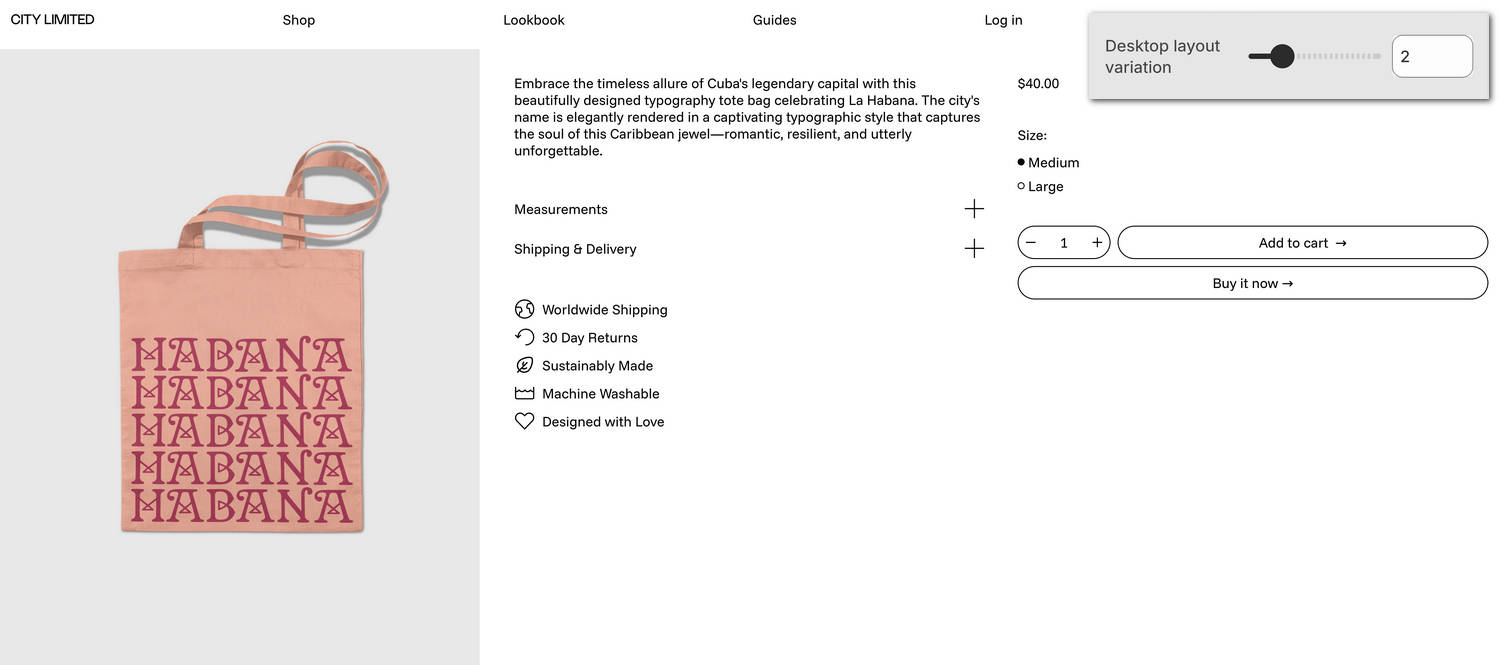
The previous image shows an example store's three-column product page. In the upper right, part of Theme editor's Product - three column section menu is displayed. The menu's Desktop layout variation option is set to 2. This option applies the second of six column-layout presets to the section's content.
For general guidance with modifying sections, refer to Sections overview and Shopify help: Sections and blocks.
Configure the Product - three column section
To configure your Product - three column section:
In Theme editor, at the top of the page, use the theme templates dropdown menu to select Products > Three column.
Note
The section is available only on Products > Three column pages. To use the section, apply the Three column template to a product. Refer to Shopify help: Apply a new template.
From the side menu, select Product - three column.
Select a setting described in the following table.
| Setting name | Description |
|---|---|
| Desktop layout variation | Adjust the Desktop layout variation slider between 1 and 6. Use this option to choose from among six preset column layout variations that change how product media and content are arranged on three-column product pages. This option applies only to desktop displays. |
| Desktop column width > Media | Use the Media option to set the product media area to occupy One third or One half of the available space inside the section. |
| Desktop column width > Product form | Use the Product form option to set the product form area to occupy One half or Two thirds of the available space inside the section. |
| Media > Enable two media per row on desktop | Set the Enable two media per row on desktop option to on or off. With this setting enabled, two (product) media items are displayed in each row inside the section's media area. For a product with an odd number of media items, the section displays the product's first media item at full width. This setting applies to desktop display devices. |
| Media > Full width first media on desktop | Set the Full width first media on desktop option to on or off. With this setting enabled, the section displays a product's first media item at full width. This setting applies to desktop display devices. |
| Media > Enable image zoom | Set the Enable image zoom option to on or off. With this option enabled, the section displays product images inside a panel that opens when a customer selects a product image. The panel provides zoom in and out options for images, arrow icons for navigating between images, and an X icon to close the panel. |
| Media > Enable video looping | Set the Enable video looping option to on or off. With this option on, product videos loop continuously for customers viewing the section's product media. With this option off, product videos play once. Refer to Shopify help: Product media. |
| Media > Enable video autoplay | Set the Enable video autoplay option to on or off. With this option enabled, product videos play automatically for customers viewing the section's product media, instead of requiring customers to start playback manually. Videos are muted during automatic playback. The setting does not apply to videos hosted on YouTube or Vimeo. |
| Product variants > Select the first available variant | Set the Select the first available variant option to on or off. Enabling this setting automatically selects the first available product variant for customers, so a default option is already chosen when customers view the product. |
| Product variants > Variant media change behavior on desktop | Use the Variant media change behavior on desktop option to select Swap with first media or Scroll to media. This option specifies a behavior for the section's media area. The behavior applies when a store visitor selects a product variant inside the section. This setting applies to desktop display devices.
|
| Product variants > Always show product featured media first | Set the Always show product featured media first option to on or off. Enabling this option keeps the product’s featured media displayed first in the media gallery, even when a specific variant is not preselected. To use this option, enable the Select the first available variant option. |
| Product variants > Single variant mode | Set the Single variant mode option to on or off. With this setting enabled, the section's media area displays a single (product) media item only. The item that's displayed is the first product media item associated with the currently selected product variant. When a store visitor selects a different product variant, the item that's displayed changes to match the newly selected variant. By default, Single variant mode applies to products with no variants. Enabling this setting overrides the section's Variant media change behavior on desktop setting. Due to a hard limitation on the Shopify platform, variant media features do not work if a product has more than 250 variants. For products with more than 250 variants, instead of using variant media, set up a separate product for each product variant, add your required media to each product, and then link sibling products using our Product groups feature. Refer to Link related products with Product groups. |
| Product variants > Enable multiple variant media | Use the Enable multiple variant media option to show or hide multiple media inside the section for products with variants. Due to a hard limitation on the Shopify platform, variant media features do not work if a product has more than 250 variants. For products with more than 250 variants, instead of using variant media, set up a separate product for each product variant, add your required media to each product, and then link sibling products using our Product groups feature. Refer to Link related products with Product groups. |
| Mobile spacing > Space above extra information content | Adjust the Space above extra information content slider between 0.5x and 2x to set the amount of space that's displayed above the section's extra information column. |
| App blocks > App block area | Use the App block area option to set app content to display in the section's Product form or Extra information column. |
| App blocks > Space above | Adjust the Space above slider between 0.5x and 2x to set the amount of space that's displayed above the section's app content area. |
| Color > Color scheme | Use the Color scheme picker to select a color scheme for the section. Refer to Colors. |
| Color > Use this color scheme for header and footer | Set the Use this color scheme for header and footer option to on or off. With this option enabled, the section's color scheme is applied to the header and footer. |
| Theme settings | If available, select Theme settings to access additional settings for the section. Refer to Section theme settings menu. |
| Custom CSS | Select Custom CSS. In the CSS field, enter custom CSS styles to apply only to the current section. Refer to Shopify help: Add custom CSS. To apply custom styles to your entire online store, refer to Theme settings > Custom CSS. |
Note
To connect a metafield to a setting that supports metafields, select the Connect dynamic source icon displayed beside the setting in Theme editor.
To learn how to connect a metafield to a supported setting, refer to Shopify help: Connecting metafields to your theme by using the Theme editor.
Configure a block within a Product - three column section
To configure a block for your Product - three column section:
In Theme editor, at the top of the page, use the theme templates dropdown menu to select Products > Three column.
From the side menu, expand the Product - three column section menu.
To configure an existing block, select the block from the side menu.
To add a new block, select Add block, choose a block to add, and then select the block you added.
Note
Inside the section, you can add, remove, show, hide, and move blocks. Refer to Configure blocks inside a section and Shopify help: Sections and blocks.
Apply a block setting described in the following table.
| Block name | Block description | Block setting(s) |
|---|---|---|
Title * | Displays a product's title inside the section. |
|
Description * | Displays a text area to contain a product's description text inside the section. |
|
Price * | Displays a product's price inside the section. |
|
Variant picker * | Displays product options or a "variant" picker for choosing variations of a product, inside the section. |
|
Quantity selector * | Displays a quantity selector, inside the section, for choosing the number of products to purchase. |
|
Buy buttons * | Displays the Add to cart and Buy it now buttons inside the section. |
|
Information list * | Displays additional product information inside the section, using a table or list layout. |
|
| Inventory status | Displays a text indicator of a product's availability, inside the section. |
|
| Location inventory status | Displays the quantity of a product that's available in each of your store's inventory locations, inside the section. |
|
| Complementary products | When a customer selects a product from your store, the block displays related products inside the section. To set up complementary products, install the Shopify search & discovery app, and refer to Shopify developer help: Product recommendations. |
|
| Text | Displays a text area to contain additional product information, inside the section. |
|
| Rich text | Displays an area with formatted text and links inside the section. |
|
| Collapsible tab | Displays a text area with expandable tabs, to contain additional product information, inside the section. |
|
| Icon list | Displays a list of items with icons, inside the section. |
|
| Popup | Displays a popup overlay to contain additional product information, inside the section. |
|
| Share | Displays an area, inside the section, with buttons for sharing links to your store's products via social media. Refer to Social media. |
|
| Custom liquid | Displays advanced customizations from Liquid code, like app snippets, inside the section. |
|
| Vendor | Displays the name of a product's vendor inside the section. |
|
| Separator | Displays a separator between the current block and the previous block inside the section. |
|