

Appearance
Create product filters using metafields
This guide explains how to create product filters using custom product metafields.
Note
For more information about creating filters, refer to Shopify help: Adding filters with Shopify Search & Discovery.
On collection pages, Shopify supports product option filters that allow store visitors to display a range of products using filtering criteria, such as availability and price. Product option filters use the values you specify for each corresponding product option in your Shopify admin. For example, a "Color" product option filter might have values like "Red" and "Blue".
You can also define custom product metafields to provide values for product filters.
Important
As an example, this guide explains how to create an "Origin" product metafield filter that allows store visitors to display a range of products from a specific country of origin. Creating the Origin filter involves:
- Defining a custom Origin product metafield.
- Adding values to the Origin metafield.
- Installing the Shopify Search & Discovery app.
- Using the Origin metafield to display "Origin" as a product filter option on the Default collection page.
To create different types of product filters using metafields, adapt the steps in this guide to suit your requirements. For more information about the different types of product filters that support product metafields, refer to Shopify help: Filter types.
Define your custom product metafield
To define your custom product metafield:
In your Shopify admin, select Settings > Metafields and metaobjects.
Select Products, and then choose Add definition.
On the Add product metafield definition page, in the Name field, enter a name for your custom metafield. For example, enter Origin.
Use the Type pickers to:
- Set your metafield to store One value or List of values. For example, to set the Origin metafield to accept a single value, select One value.
- Select a content type for the metafield. For example, to set the Origin metafield to store a single string of text, select Single line text.
Optional: Select Add description, and then, in the Description text box, enter a description for your custom metafield. For example, enter Country of origin.
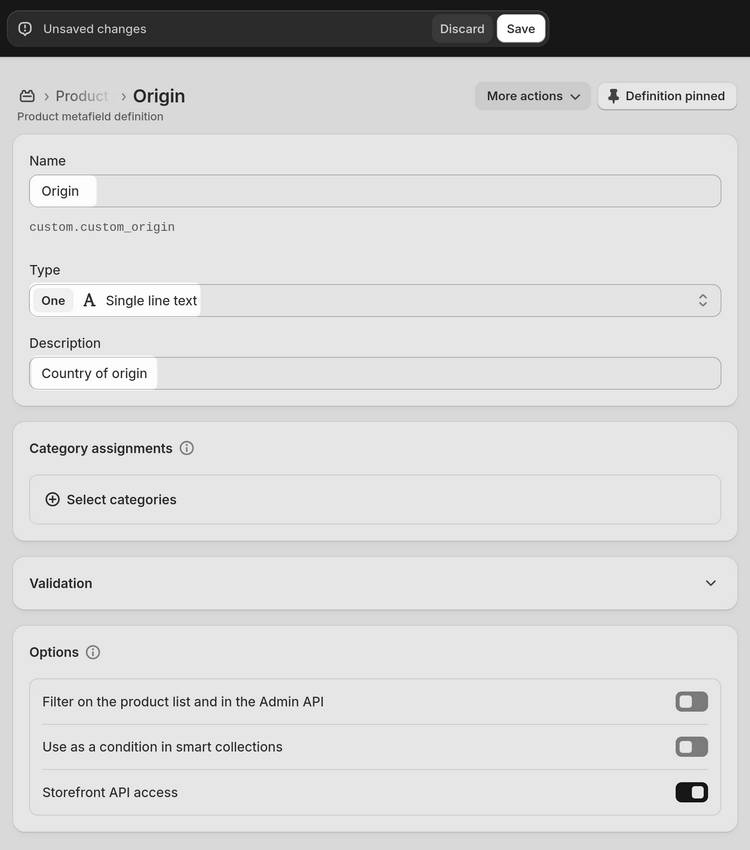
Optional: Specify metafield category assignments and validation options as required.
Select Save to save your custom product metafield definition.
Add values to your custom product metafield
To add values to your custom product metafield:
In your Shopify admin, select Products.
Choose a product to open in the Product editor.
In the Product editor, locate the Product metafields pane.
Select the field for your custom product metafield, and then enter a value. For example, enter Australia.
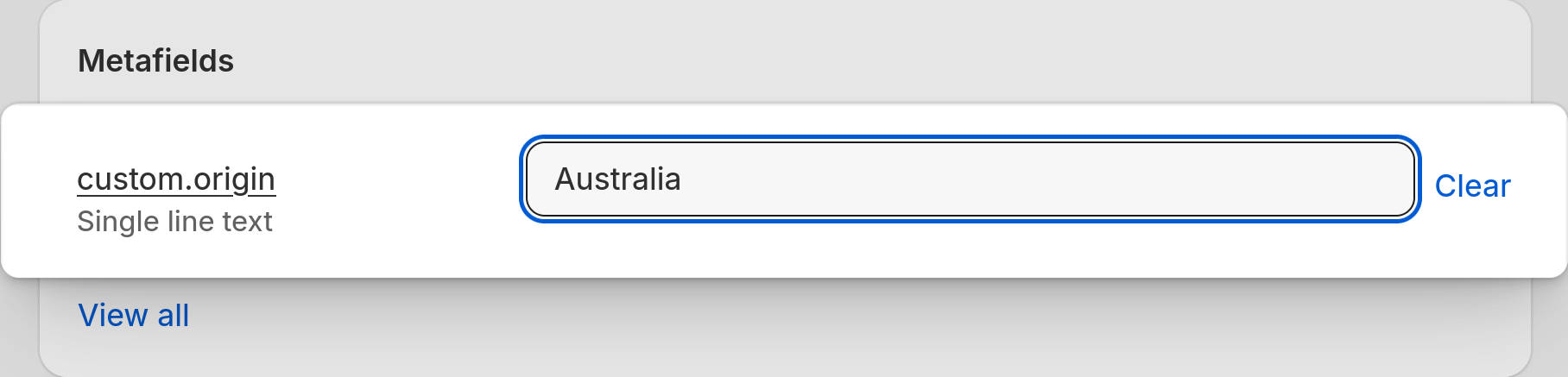
Optional: Repeat the previous steps to add values to your custom product metafield for other products.
Select Save to save the values you added to your custom product metafield.
Install the Shopify Search & Discovery app
If you don't have the Shopify Search & Discovery app installed for your store, complete the following steps to install the app:
Log in to your Shopify admin, open the Shopify Search & Discovery app page at
https://apps.shopify.com/search-and-discovery, select Install, and then accept the installation terms when prompted.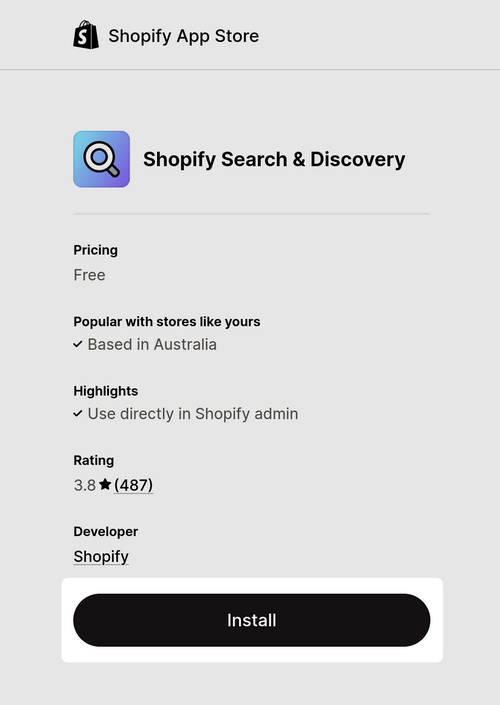
In your Shopify admin, select Apps > Search & Discovery > Filters.
Select Add filter, choose Select source, and then select the custom product metafield you created previously. For example, select Origin.
On the Add filter page, in the Filter label field, enter a display name for your custom filter option. For example, enter Origin.
Note
The name you enter is displayed as a label for the filter option on collection pages.
On the Add filter page, locate the Values pane, and then select the checkbox for each value you want to display as a product filter option. For example, select the Australia checkbox.
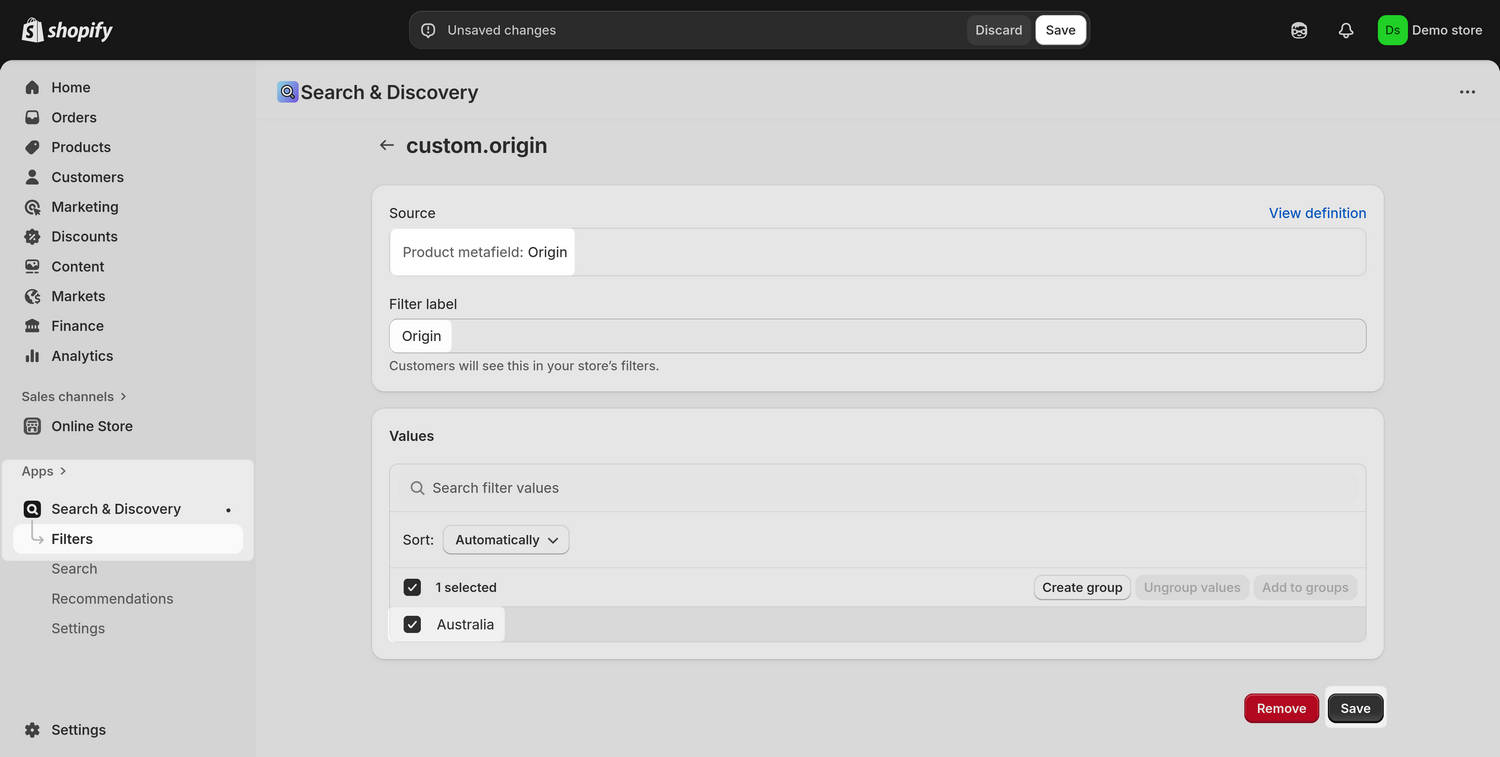
Select Save to save the changes you made to the Shopify Search & Discovery app's filter options.
Use your custom metafield to display a product filter option
To use your custom metafield to display a product filter option on a collection page:
In your Shopify admin, go to Sales channels > Online store > Themes.
Next to the name of the theme you want to modify, select Edit theme to open the Theme editor.
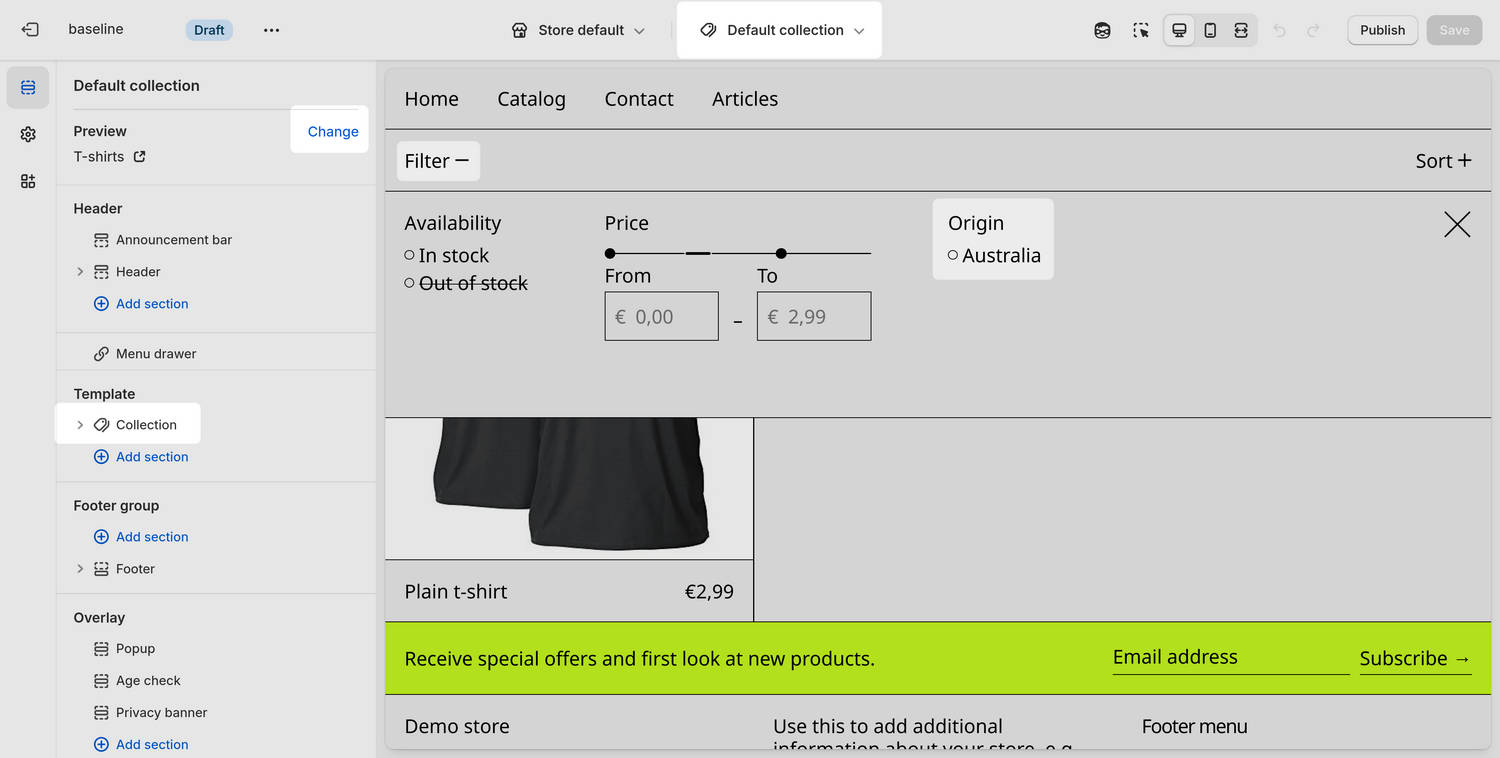
In the Theme editor, use the template dropdown at the top of the page to select a collection page where you want to display your custom product filter option. For example, select Collections > Default collection.
Optional: In the Theme editor's sidebar, use the collection picker to choose a collection to preview that includes values you specified for your custom product metafield.
Confirm that the Collection section's Filter options include the values from your custom product metafield.
For example, the following image shows a store's Default collection page with the custom Origin product filter option.
Optional: In the Theme editor sidebar, adjust the section's Sorting and filtering settings to suit your requirements.
Select Save to save your changes.