Appearance
Fix text formatting issues
Note
This is an advanced customization guide that requires editing theme code. These changes are not supported by Switch Themes or Shopify. We recommend hiring an expert if you're not comfortable editing Liquid, HTML, CSS, and JavaScript.
Before you customize a theme, make a backup. Refer to Shopify help: Duplicating themes.
Sometimes, the text for product descriptions, blog posts, and other store elements can render incorrectly on a store page, even though it displays correctly in Shopify admin.
For example, in the product description editor, the text in the following image appears to display correctly.
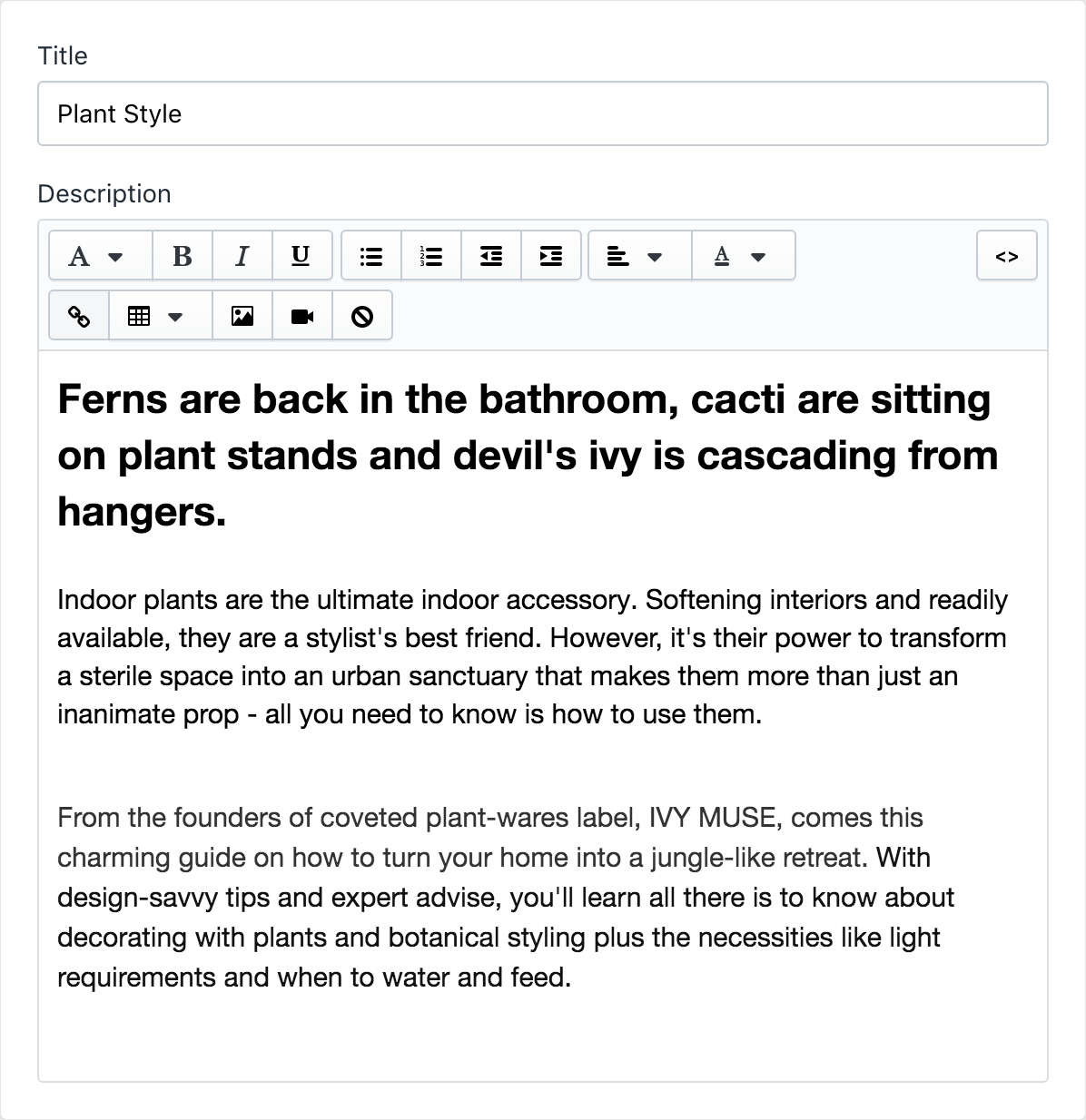
However, in the following image, the same text renders on the store's product page with additional spacing, unwanted text colors, and other anomalies.

In the following image, the Rich Text Editor is set to HTML view mode. The HTML view reveals the cause of the text formatting issues.
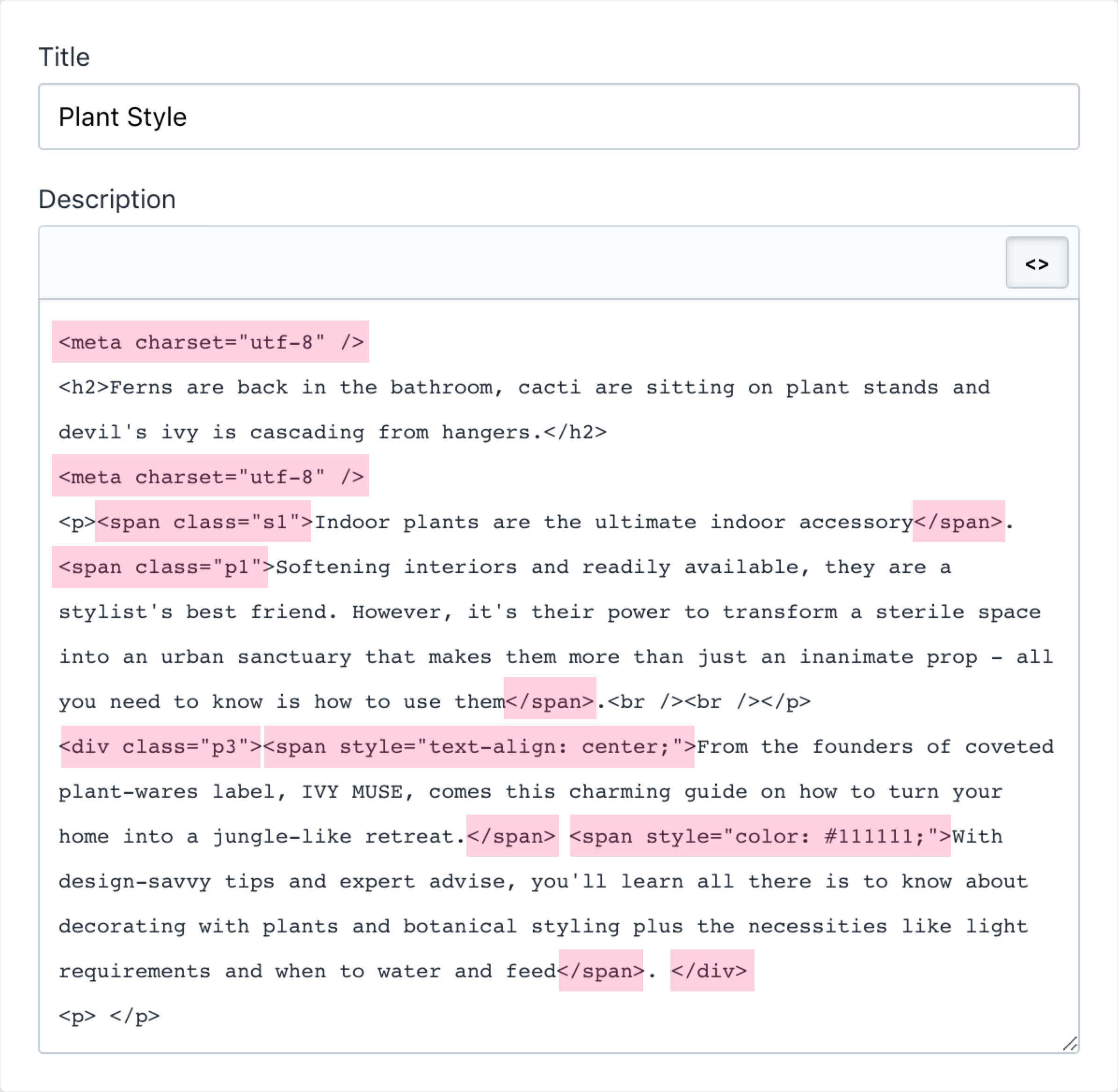
The HTML view shows that there is additional markup in the text. By default, Shopify converts the text you add in the editor into HTML. For example, if you apply the bold text style to a word, Shopify adds HTML <strong> tags so that the word becomes <strong>word</strong> in HTML. In the previous image, the text contains unwanted HTML formatting tags that were not added by Shopify. These additional tags, highlighted in the previous image, are causing text formatting and layout issues.
Additional tags are often introduced when text is copied and pasted from a formatted text source, like a webpage or a word processing document. The Rich Text Editor has a Clear Formatting button. However, this button only resets changes made by the Rich Text Editor, and does not remove tags pasted from external text sources.
Remove unwanted formatting tags
The solution is to remove the unwanted formatting tags from the text. To do this:
Open the Shopify Rich Text Editor in the default view mode.
Select all of the text inside the Rich Text Editor.
Copy the text, and then paste it into a plain-text editor.
Note
A plain-text editor is a text editor that does not allow special text formatting or styling, like bold or italic text. Examples of plain-text editors are Notepad for Windows, TextEdit for Mac, and Vim for Linux.
Switch the Rich Text Editor to HTML view mode.
Select all of the text, and then delete it. Do not leave any text inside the Rich Text Editor.
Switch the Rich Text Editor back to default view mode.
Copy the text from your plain-text editor.
Paste the text back into the Shopify Rich Text Editor.
Inside the Rich Text Editor, re-apply bold, italic, or heading text styles, as required.
In the following image, the cleanup steps have been applied to the previous text. Now, the text displays correctly on the store's product page.

Video demo
The following video demonstrates fixing text formatting issues by using the Rich Text Editor.
A note about TextEdit for Mac users
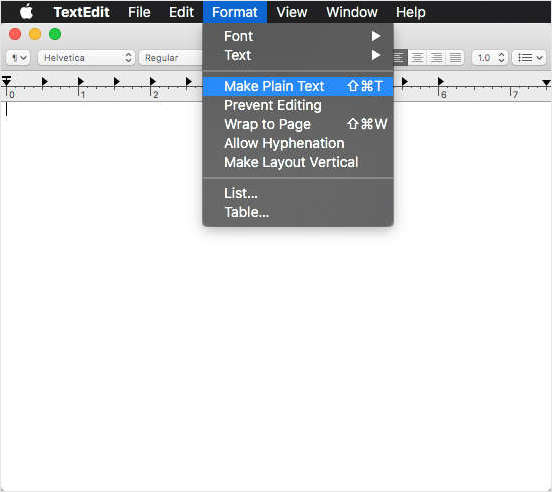
Mac computers include the TextEdit application for plain-text editing. However, TextEdit opens in rich text mode by default. To switch TextEdit to plain-text mode, open TextEdit, create a new document, and then choose Format > Make Plain Text.