

Appearance
Migrate your color schemes
This guide explains how to migrate your Baseline version 2 color schemes to Baseline version 5's color scheme format.
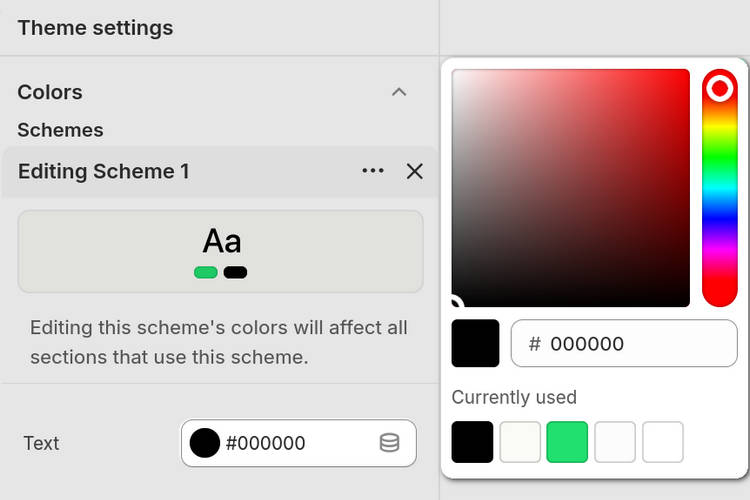
Important
Since Baseline version 3, Baseline has used Shopify's newest color scheme format. This format is also used in Baseline version 5, and it offers advantages over the custom color schemes used in Baseline version 2.
Baseline version 2 and Baseline version 5 use different data formats to implement color schemes. Because of this difference, your store's color schemes do not migrate automatically when you update from version 2 to version 5.
Use the Color scheme migrator tool
To help you bring your existing color schemes over to the new color schemes format, we made the online Color scheme migrator tool.
To use the Color scheme migrator tool, complete the following steps.
Note
Before you edit your theme code, duplicate your current theme. Refer to Shopify help: Duplicating themes.
Duplicating your theme retains a backup copy of your current theme in your Shopify admin. If something unexpected happens to your store after you edit your theme code, use your duplicated theme to revert your changes.
In your Shopify admin, navigate to Sales channels > Online store > Themes.
In the Themes area, locate your Baseline version 2 theme.
Update your Baseline version 2 theme to the latest version.
Refer to Update to latest version. The update process creates a new copy of Baseline in your Shopify admin's Theme library. Your new copy of Baseline is updated to the latest version, without the colors from your store's color schemes.
In your Shopify admin Themes area, locate your new version of Baseline created by the update process.
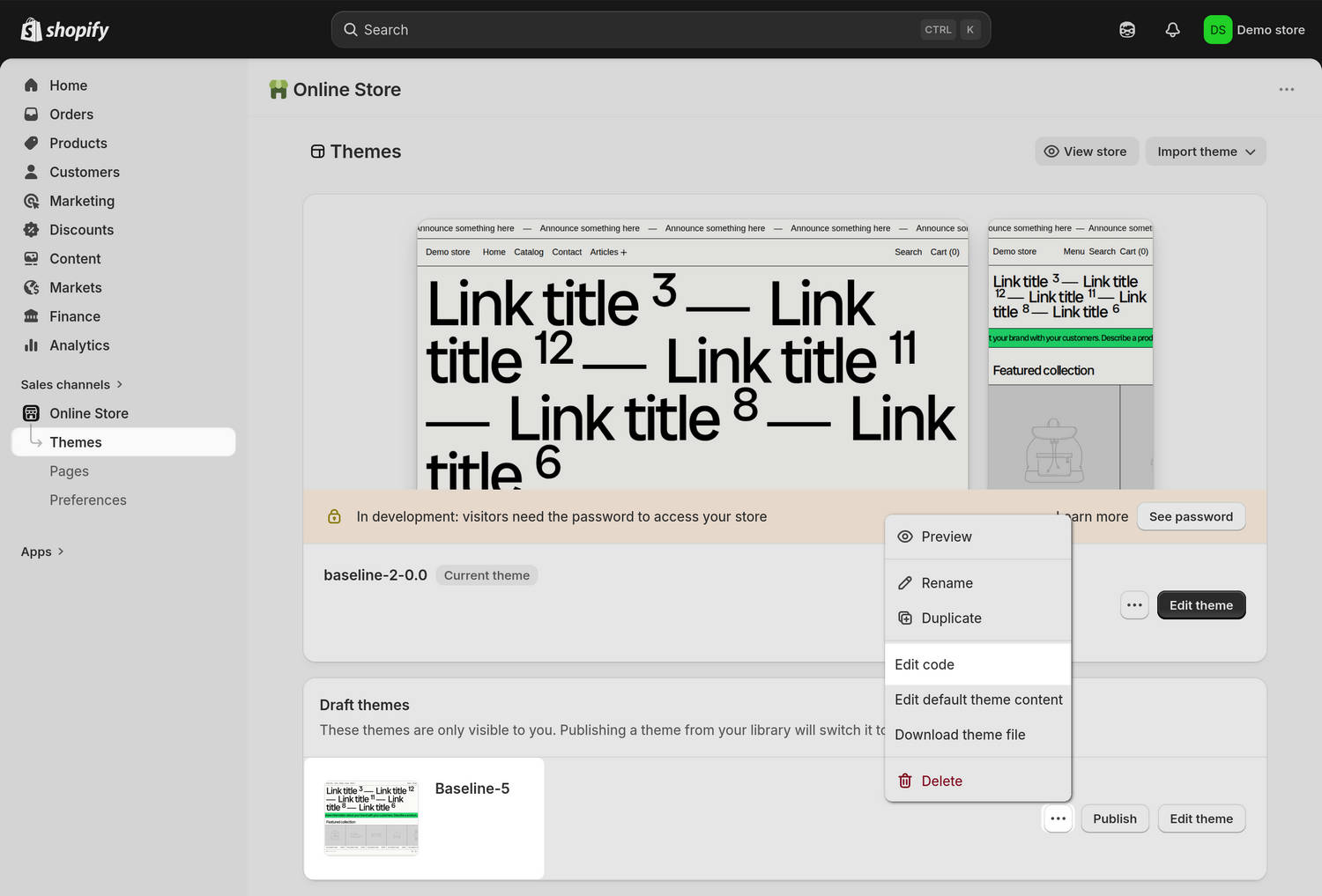
Next to the name of your new version of Baseline, select
...(the ellipsis icon), and then choose Edit code.Selecting the Edit code option opens Shopify's Code editor.
In the Code editor, expand the Config subdirectory.
Inside the Config subdirectory, select the
settings_data.jsonfile.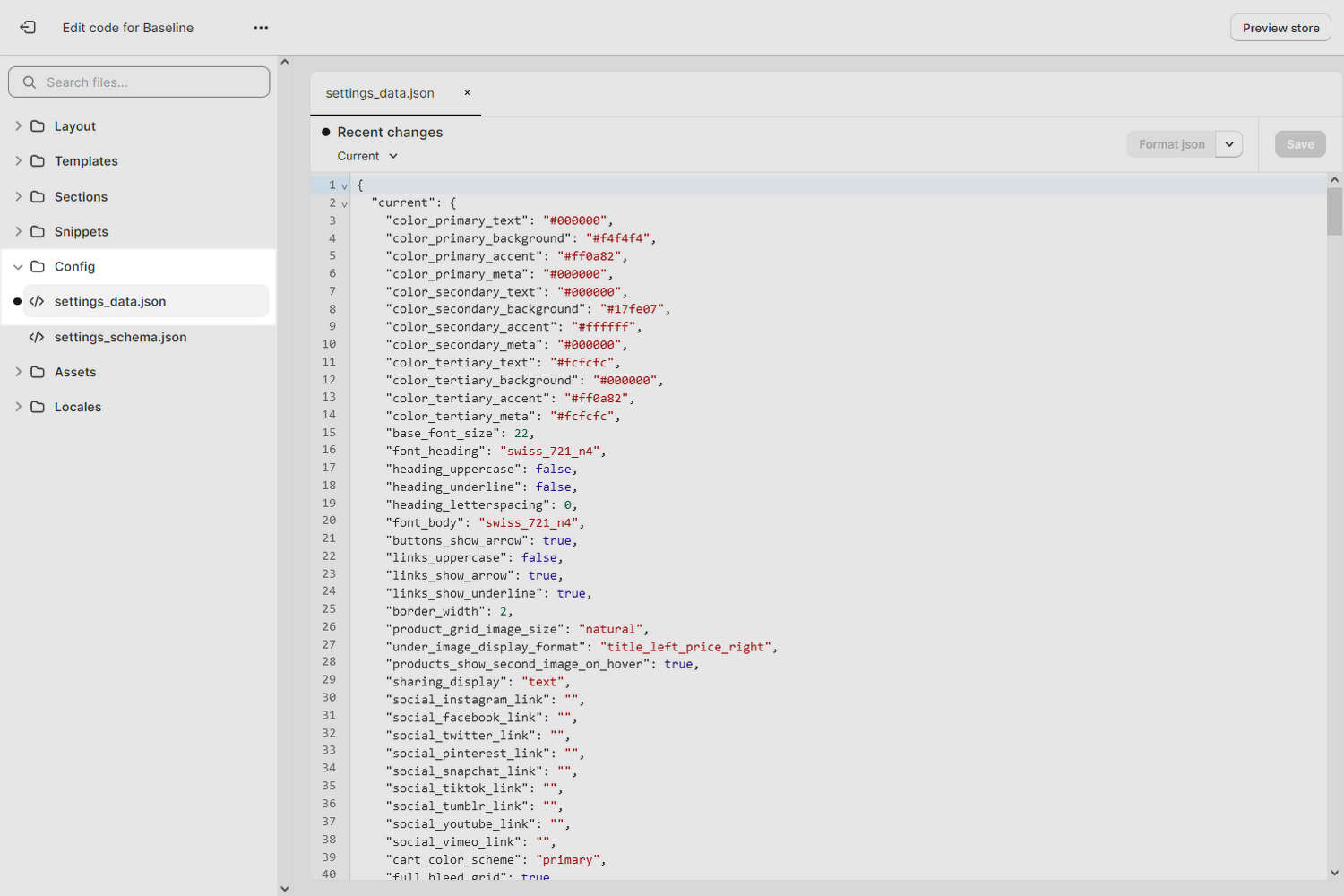
With the
settings_data.jsonfile open in the Code editor, select the entire contents of the file, and then copy the file's contents to your computer's clipboard.In the next steps, you will paste the copied file contents into the Color scheme migrator tool. Keep the file open in the Code editor, because you will edit it again shortly.
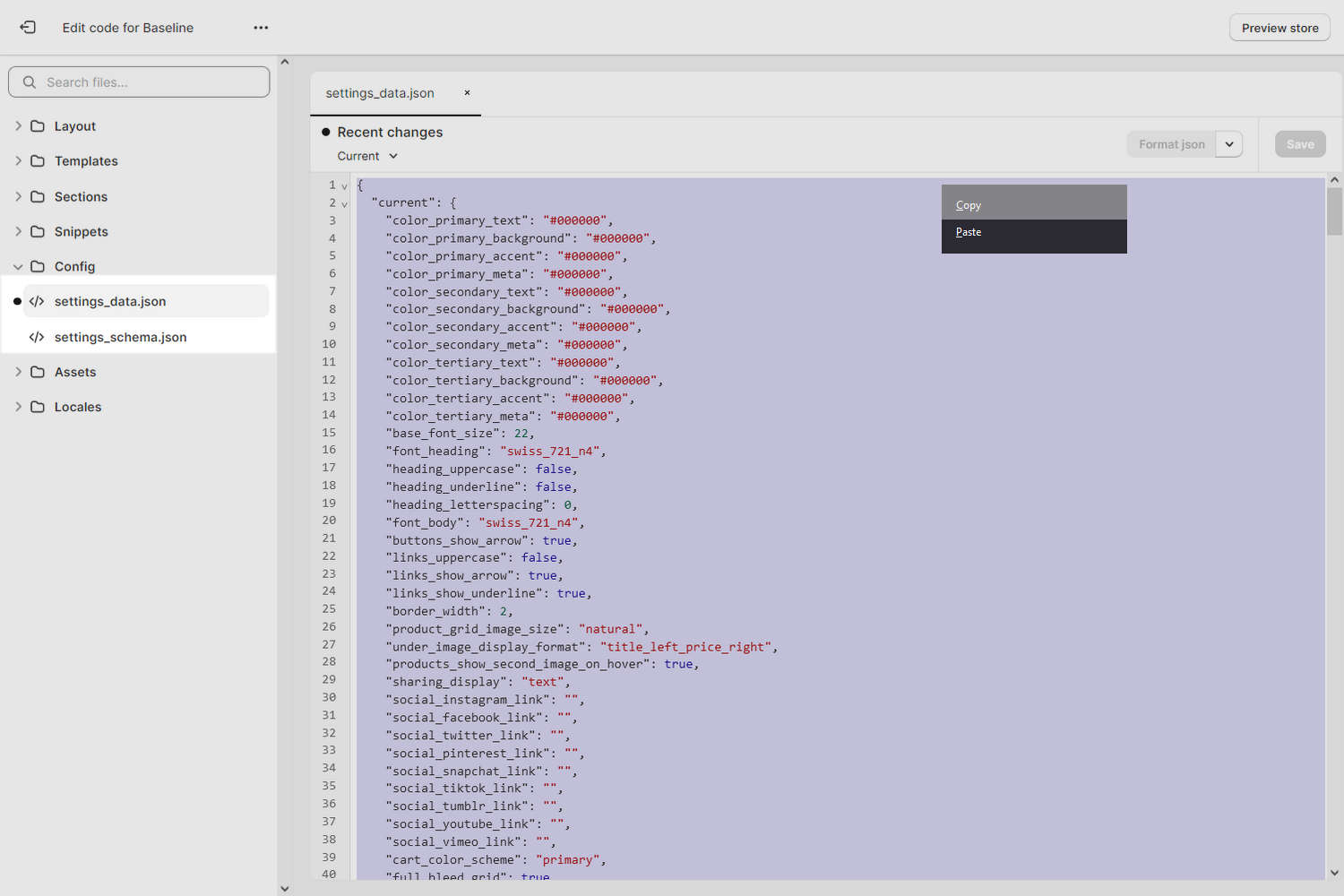
In a new web browser window or tab, open the Color scheme migrator tool.
On the Color scheme migrator page, select Paste to paste the
settings_data.jsonfile contents into the tool.Alternatively, locate the Color scheme migrator's first text box (on the left side). Then, in the tool's first text box, paste the
settings_data.jsonfile contents that you copied previously.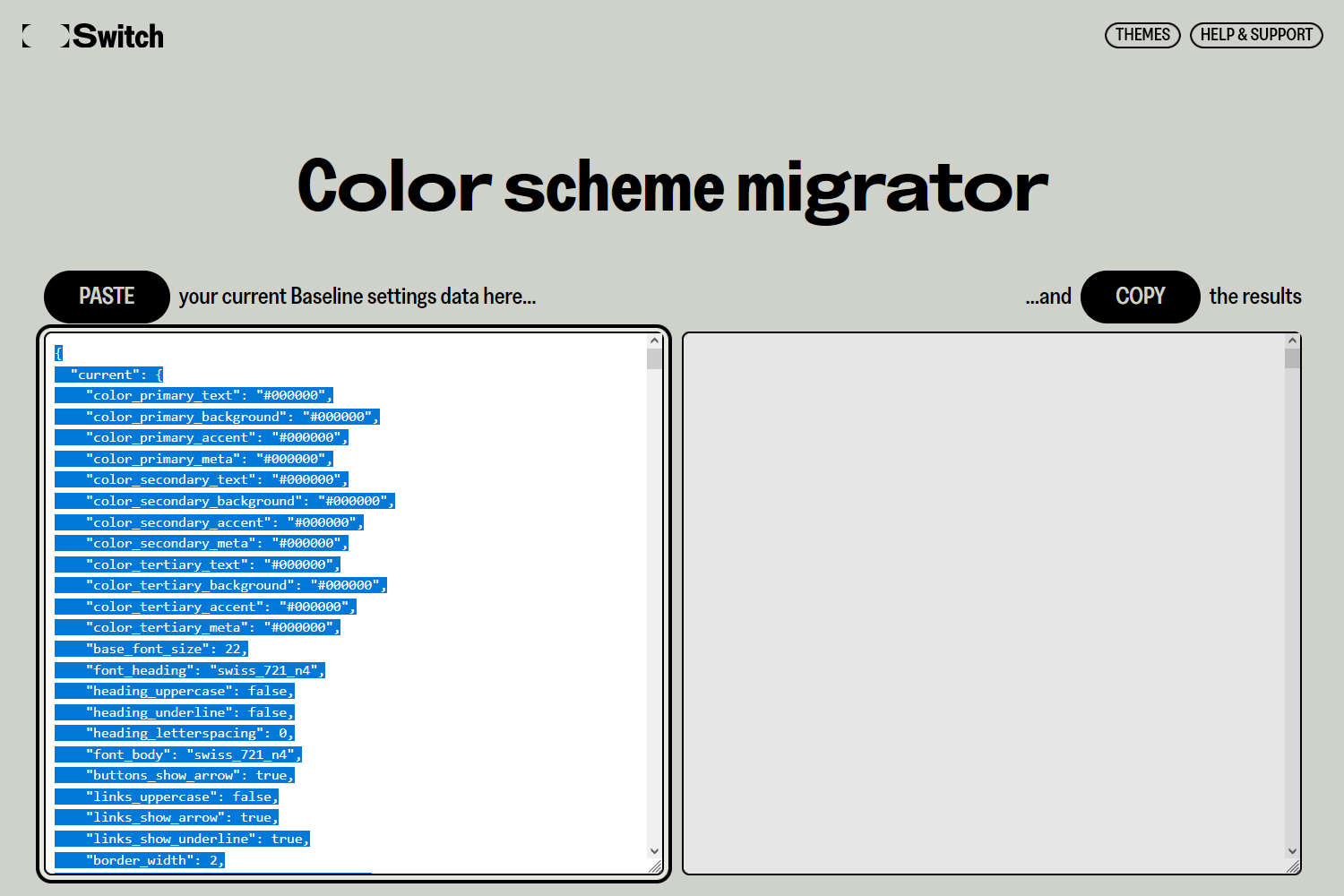
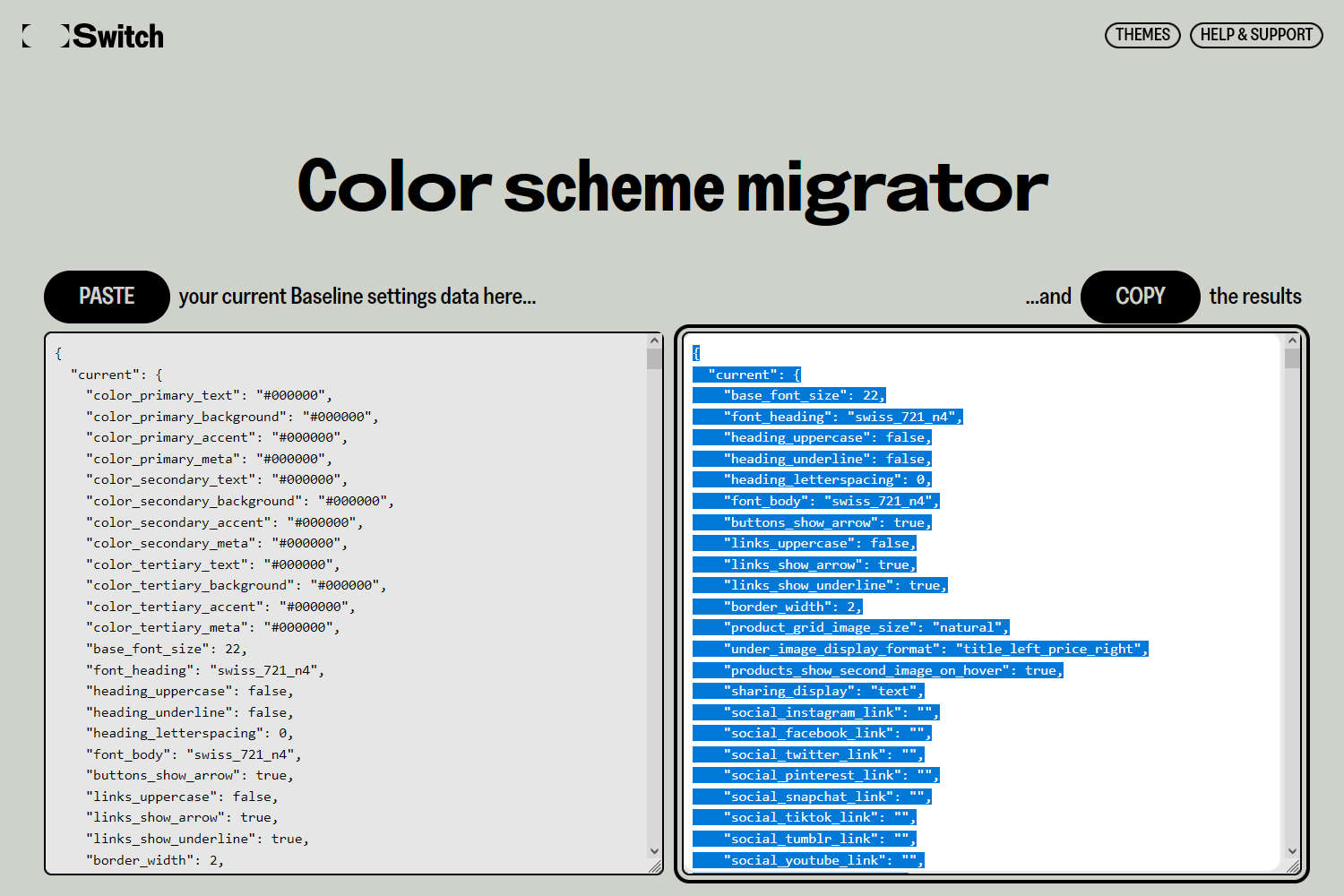
After you paste your data, the contents of the tool's second text box update automatically (on the right side).
When the second text box updates, select Copy to copy the contents of the tool's second text box to your computer's clipboard. In the following steps, you will paste the data you copied into Shopify's Code editor.
Note
If the tool's second text box shows an error message, follow the instructions displayed on the web page. Alternatively, contact the Switch support team for help.
Return to your previous browser window or tab that has the
settings_data.jsonfile open in Shopify's Code editor.If you closed the file in the Code editor, reopen the file there.
In the Code editor, select the entire contents of the
settings_data.jsonfile.Replace the file's contents with the data that you copied from the Color scheme migrator tool.
Select Save, and then preview your store to verify that your color schemes were migrated successfully.
After you finish customizing, publish your updated theme from your Shopify admin.