

Appearance
Add custom product badges
This guide explains how to use metafields to create custom badges for product tiles.
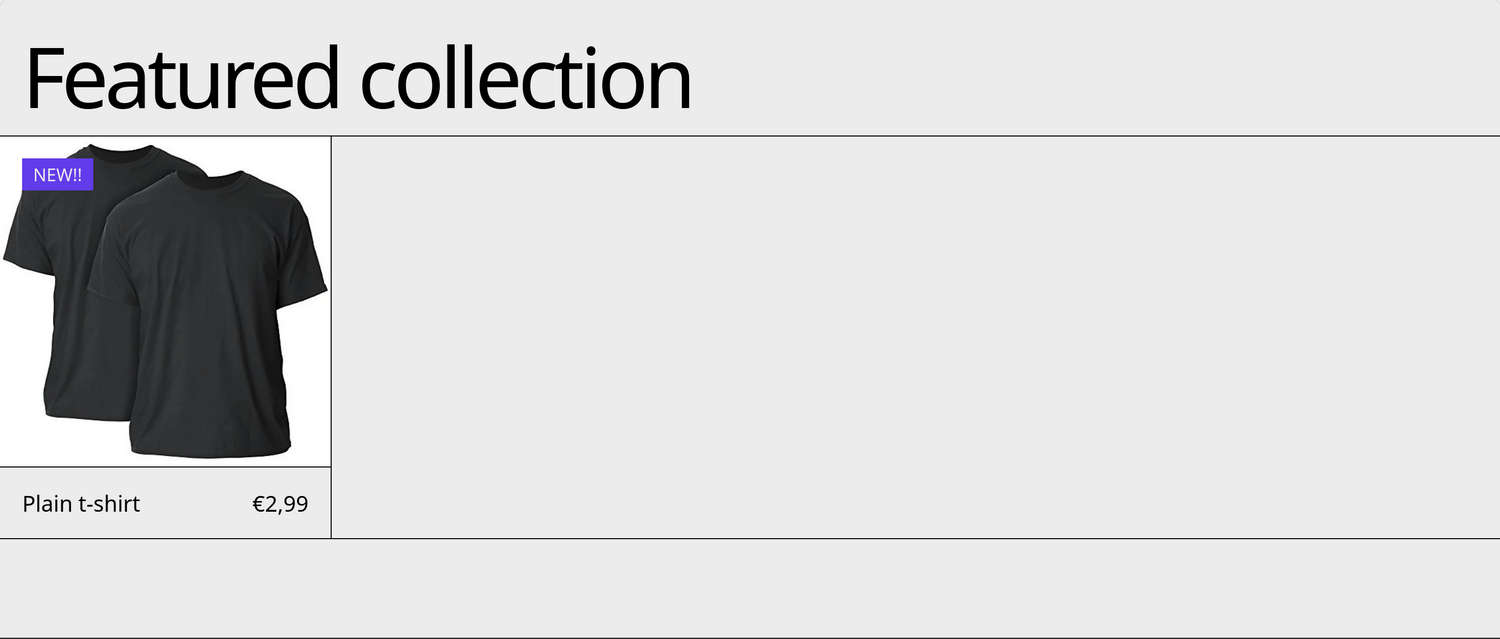
In sections that support product tiles, you can use metafields to create custom product badges in addition to the built-in "On sale" and "Sold out" badges.
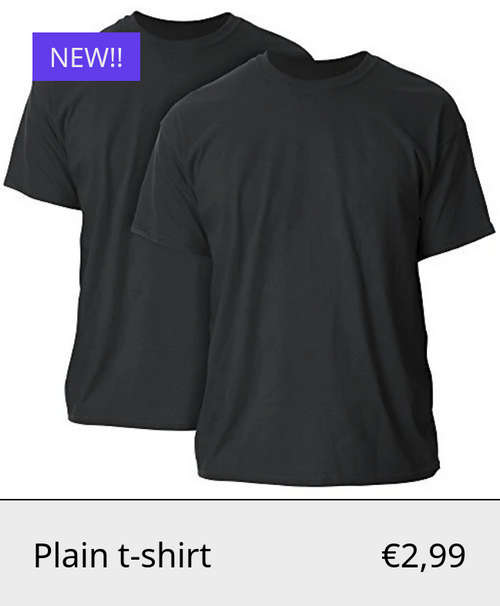
For example, in the previous image, the store's Featured collection section contains a Plain t-shirt product tile. The tile is overlaid with the NEW!! custom product badge. A custom metafield provides the badge text.
To use a metafield to create a custom product badge, complete the following steps:
- Define a custom product badge metafield
- Add values to your custom product badge metafield
- Enable your custom product badge metafield in Theme settings
- Display your custom product badge in a product section
Define a custom product badge metafield
In your Shopify admin, select Settings > Metafields and metaobjects, and then choose Products.
On the Product metafield definitions page, select Add definition and then enter the following information:
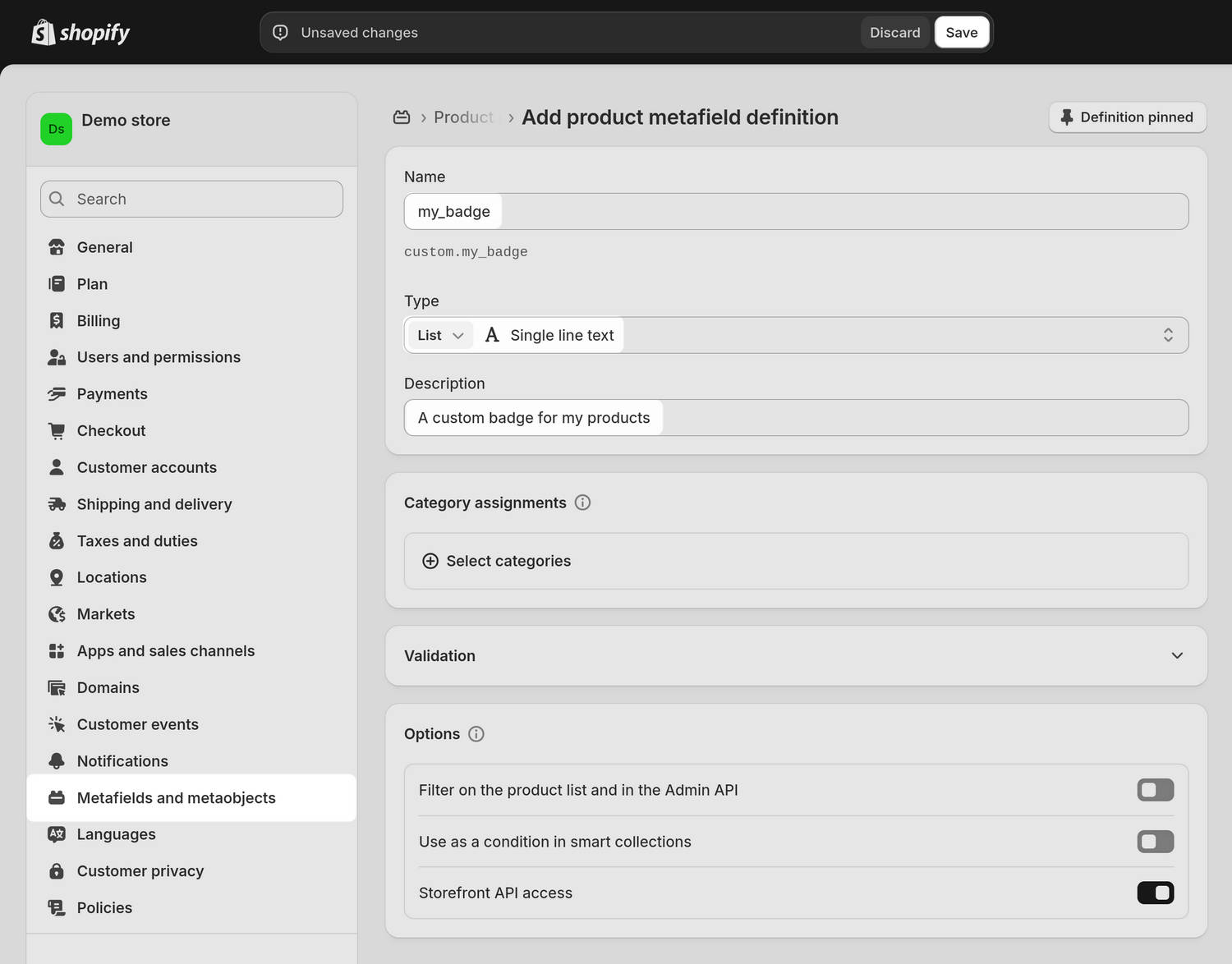
In the Name field, enter a name for your custom product badge metafield. For example, enter my_badge.
Use the Type options to select List of values, and then choose Single line text.
Optional: Select Add description, and then enter a description for your custom product badge metafield in the Description field. For example, enter A custom badge for my products.
Confirm that the information you entered is similar to the information shown in the following image, and then select Save.
Add values to your custom product badge metafield
In your Shopify admin, select Products, and then choose a product to use with your custom product badge.
In the Product editor, locate the Product metafields pane.
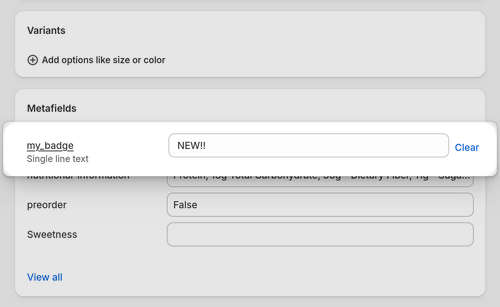
Select the custom product badge metafield you created previously, and then enter a value into the corresponding field. The value you enter is used as the badge text.
In the following image, the example value NEW!! is entered.
Optional: To add another value, select Add item, and then enter the required value.
Select Save to save the values you entered.
Enable your custom product badge metafield in Theme settings
Open your theme in the Theme editor and then select Theme settings > Product grid tiles.
In the sidebar, locate the Badges pane and then set the Show custom badges option to Metafield.
Note
The other options available are:
- None. Turns off displaying custom product badges.
- Tags. Displays product badges created from the product tags you specify in Shopify's Product editor.
In the Metafield namespace and key field, enter the namespace and key for the custom product metafield you created previously.
For example, enter
custom.my_badge.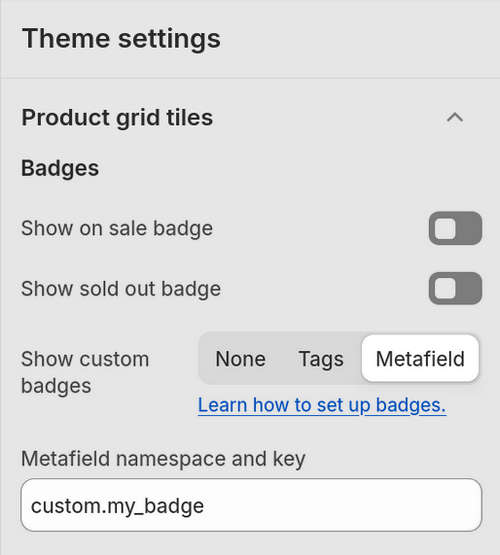
Select Save to save your changes.
Display your custom product badge in a product section
Open your theme in the Theme editor and then select a product section.
In the section settings, select a product that you previously added a custom product badge value to.
Preview the section to confirm your custom product badge displays correctly.
For example, the following image shows a product section and the section's Plain t-shirt product tile is overlaid with the NEW!! custom product badge.
Select Save to save your changes.