

Appearance
Shape divider
This guide describes using a Shape divider block to add a stylized separator between sections.
The previous video demonstrates adding a Shape divider to a section.
Add a shape divider
You can add Shape divider blocks to any supported section.
For example, in the following image, a Rich text section contains a Shape divider block. A Wave style is applied to the block.

To add a Shape divider block to a section:
In the Theme editor, select a supported section from the side menu.
Note
Shape divider blocks can be added to most sections, but not all sections.
Select Add block, and then choose the Shape divider block.
Types of shape divider
Shapes provides 28 style types to use with a Shape divider block. For a list of available shape divider types, refer to Shape dividers.
How to position a shape divider
When you add a shape divider block to a section, set the divider to target the section above or below the block.
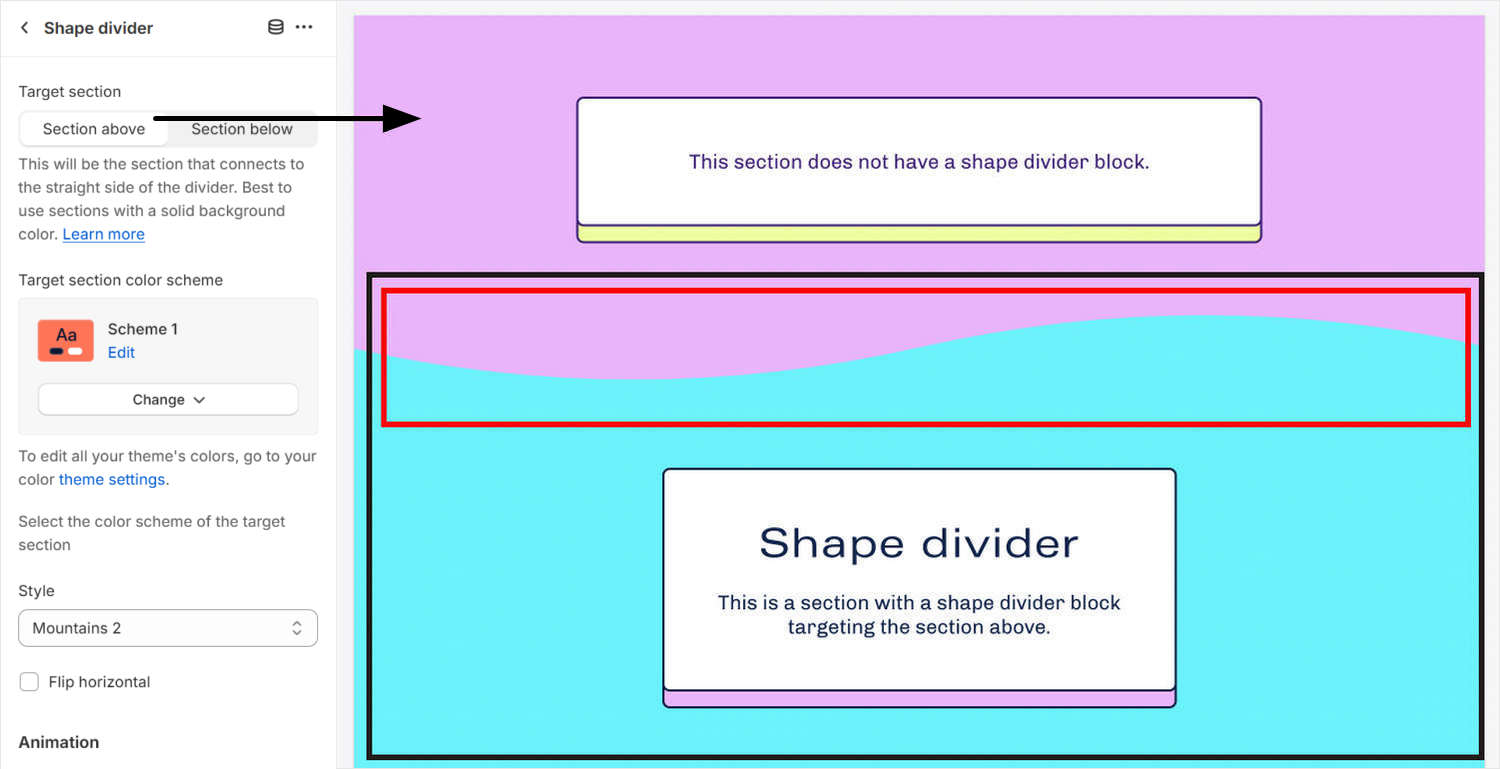
For example, in the following image, two sections are displayed. The lower section contains a shape divider block. In the block's setting menu, the option is set to target the section above the divider block.
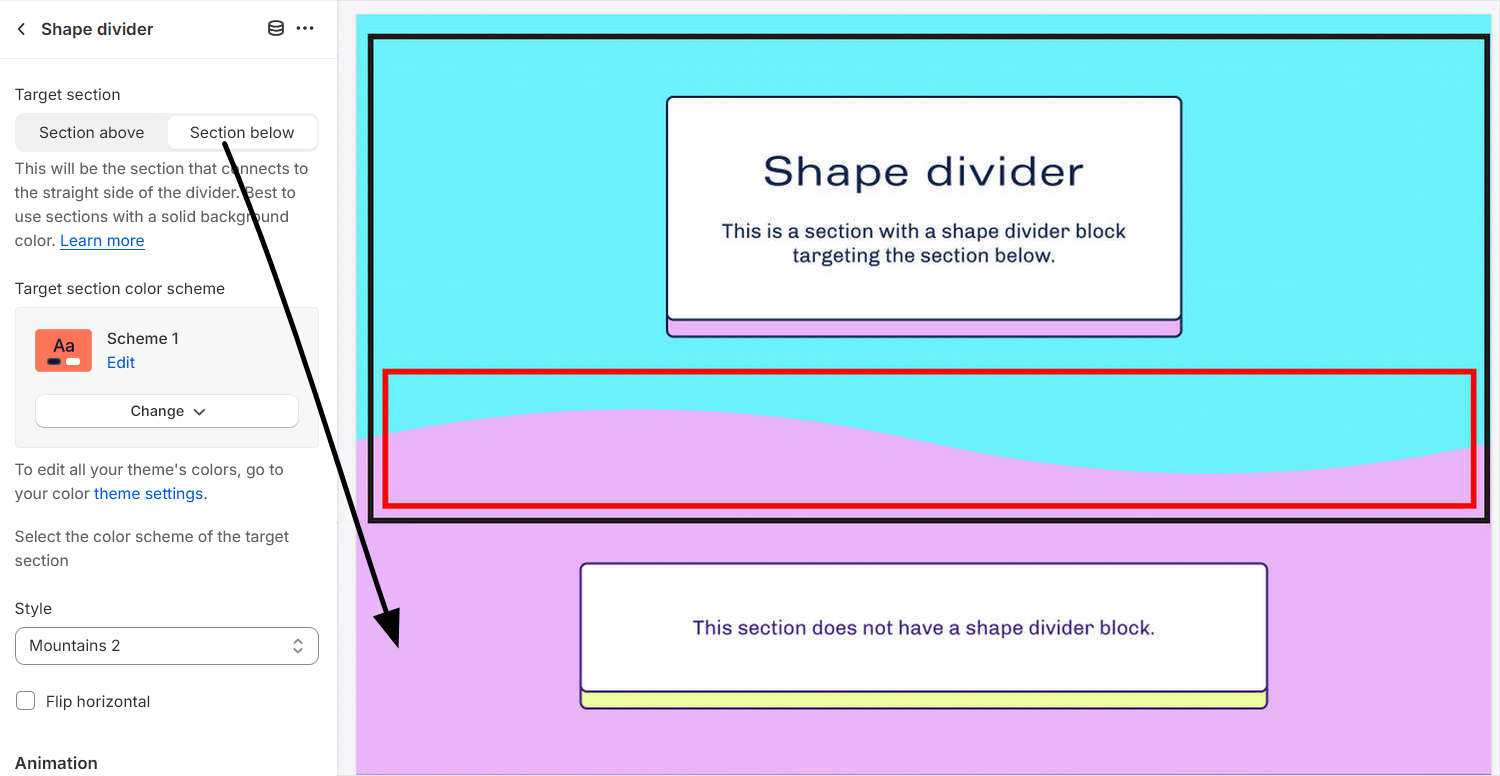
Two sections are displayed in the following image. The upper section contains a shape divider block. In the block settings menu, the option is set to target the section below the divider block.
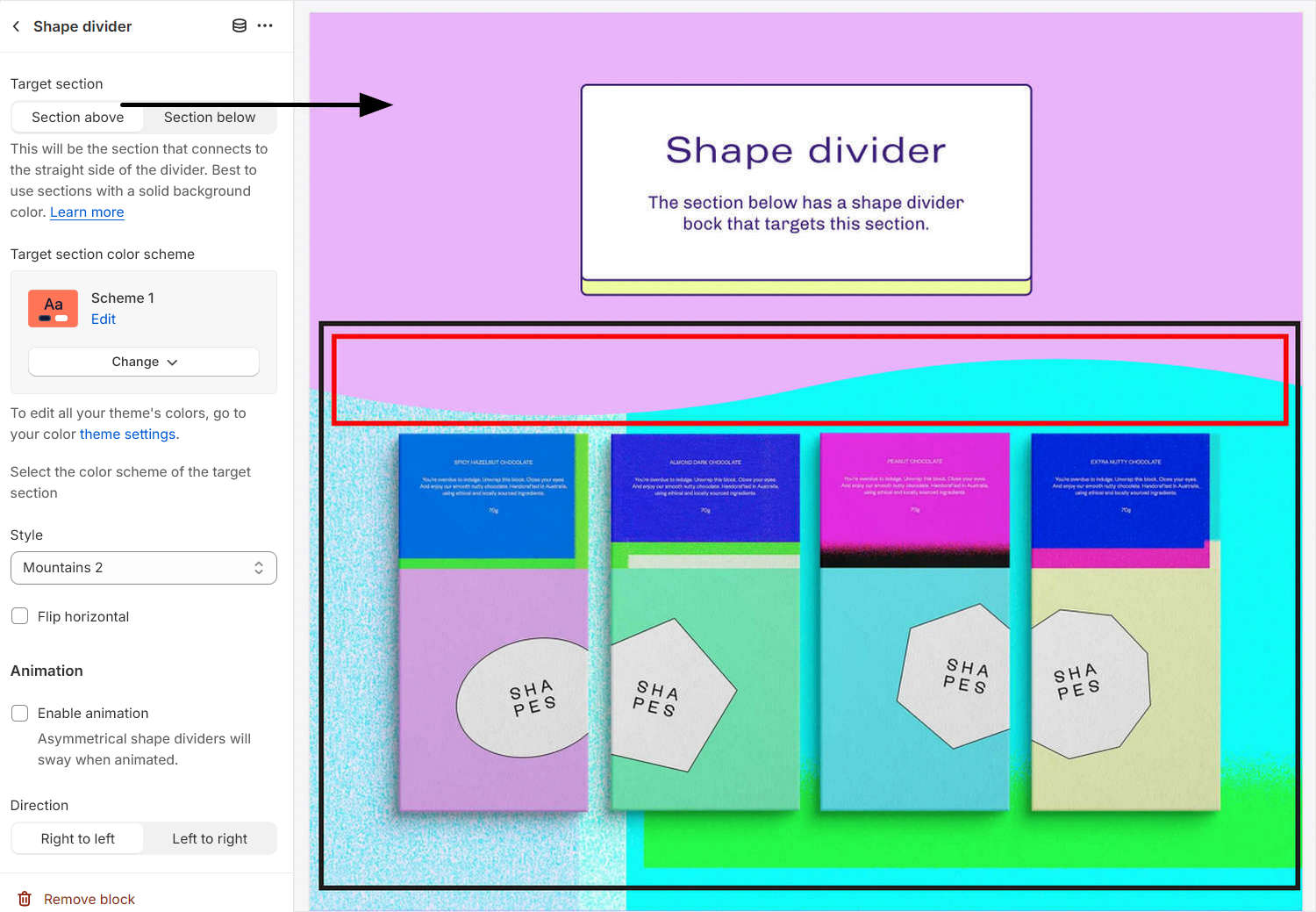
In the following image, two sections are displayed. The lower section contains a shape divider block. In the block settings menu, the option is set to target the section above the divider block.
Apply color schemes to shape dividers
With Shape divider blocks, you must set the block to use the same color scheme as the target section.
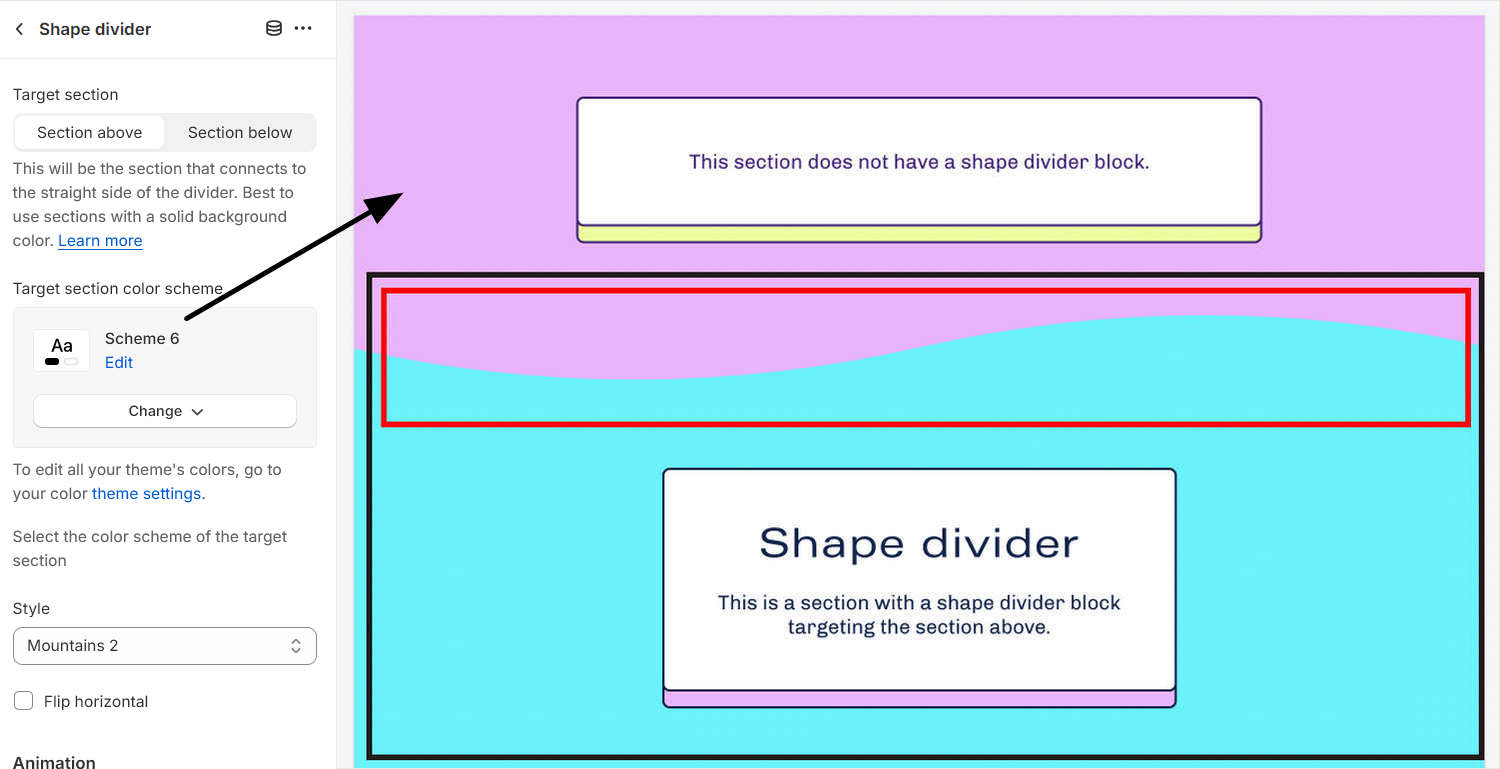
As an example, two sections are displayed in the following image. The lower section contains a shape divider block. In the block settings menu, the option is set to match the color scheme of the target section. By setting the shape divider color to the target section's color scheme, the sections above and below the divider blend together seamlessly.
Note
For optimal color blending, the shape divider's color must match the color scheme of the section above or below it. Shape dividers work best when they're positioned below or above a section that has a solid color background.
Configure a Shape divider
To configure a Shape divider block:
In the Theme editor, from the side menu, select a section that contains a Shape divider block.
Expand the section menu, and then select a Shape divider block.
Apply a block setting described in the following table.
| Block setting name | Description |
|---|---|
| Target section | Use the Target section option to specify a section to connect to the straight side of the divider. The options are Section above or Section below. Refer to How to position a shape divider. Using sections with a solid background color is recommended. |
| Target section color scheme | Use the Target section color scheme picker to select a color scheme for the block. You must select the same color scheme as the target section. Refer to Apply color schemes to shape dividers. |
| Style | Use the Style option to set a style type for the divider block. Refer to Types of shape divider. |
| Flip horizontal | Use the Flip horizontal option to flip or un-flip the divider along the y-axis (horizontally). This setting applies only to asymmetrical divider style types. |
| Animation > Enable animation | Use the Enable animation option to turn on or off shape divider animation effects. If enabled, symmetrical divider shapes move in one direction and asymmetrical divider shapes sway. |
| Animation > Direction | Use the Direction option to set the direction of the animation to move from Right to left or Left to right. To use this option, turn on the Enable animation option. |
| Remove block | Select Remove block to delete the block from the section. |