

Appearance
Create a custom template
This guide describes how to create, assign, and configure a custom template. You can create custom templates for products, collections, pages, blogs, and blog posts (articles).
Note
For more information about customizing templates, refer to Shopify help: Templates.
To create a custom template:
- Create your template in the Theme editor
- Assign your template in Shopify admin
- Configure sections and blocks in the Theme editor
Create your template in the Theme editor
To create your template in the Theme editor:
In your Shopify admin, locate the theme you want to customize, and then select Edit theme to open your theme in the Theme editor.
At the top of the Theme editor, use the dropdown to choose the area that relates to your new template, and then select Create template.
For example, select Products, Collections, Pages, Blogs, or Blog posts.
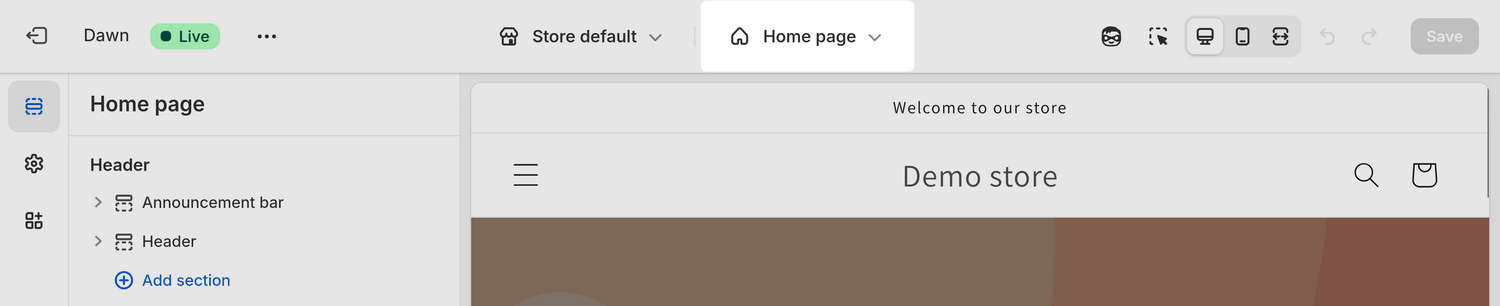
On the Create a template pane, in the Name field, enter a name for your template.
Use the Based on dropdown to select an existing template to use as a base for your new template, and then select Create template.
Select Save.
Assign your template in Shopify admin
To assign your template in Shopify admin:
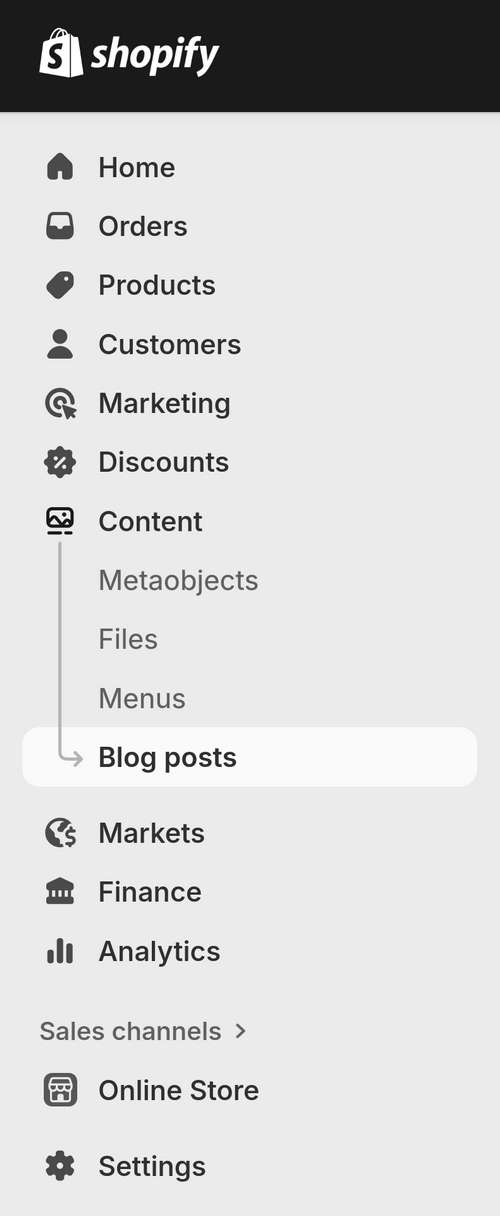
In your Shopify admin, choose the content area for the template you are assigning.
For example, in the following image, the Content > Blog posts menu item is selected for assigning a template to a blog post (article).
Select the resource you are applying your template to.
For example, select a specific product, collection, page, or blog post (article). For a blog, select Manage blogs, and then choose the blog you are applying your template to.
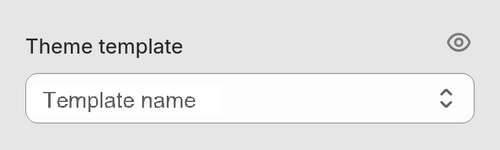
Locate the Theme template dropdown, and then select a template to apply.
Select Save.
Configure sections and blocks in the Theme editor
To configure sections and blocks in the Theme editor:
Open your theme in the Theme editor, then use the dropdown at the top of the page to select your template.
For example, select Blog posts > Default blog post.
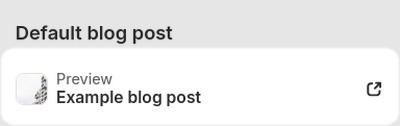
Use the Preview picker at the top of the sidebar menu to choose a resource that you assigned your template to.
For example, in the following image the Example blog post article is selected in the Preview picker.
Use the Theme editor's sidebar to add or remove sections and blocks to suit your requirements.
Select Save.