

Appearance
Cart drawer
This guide describes how to set up the Cart drawer section.
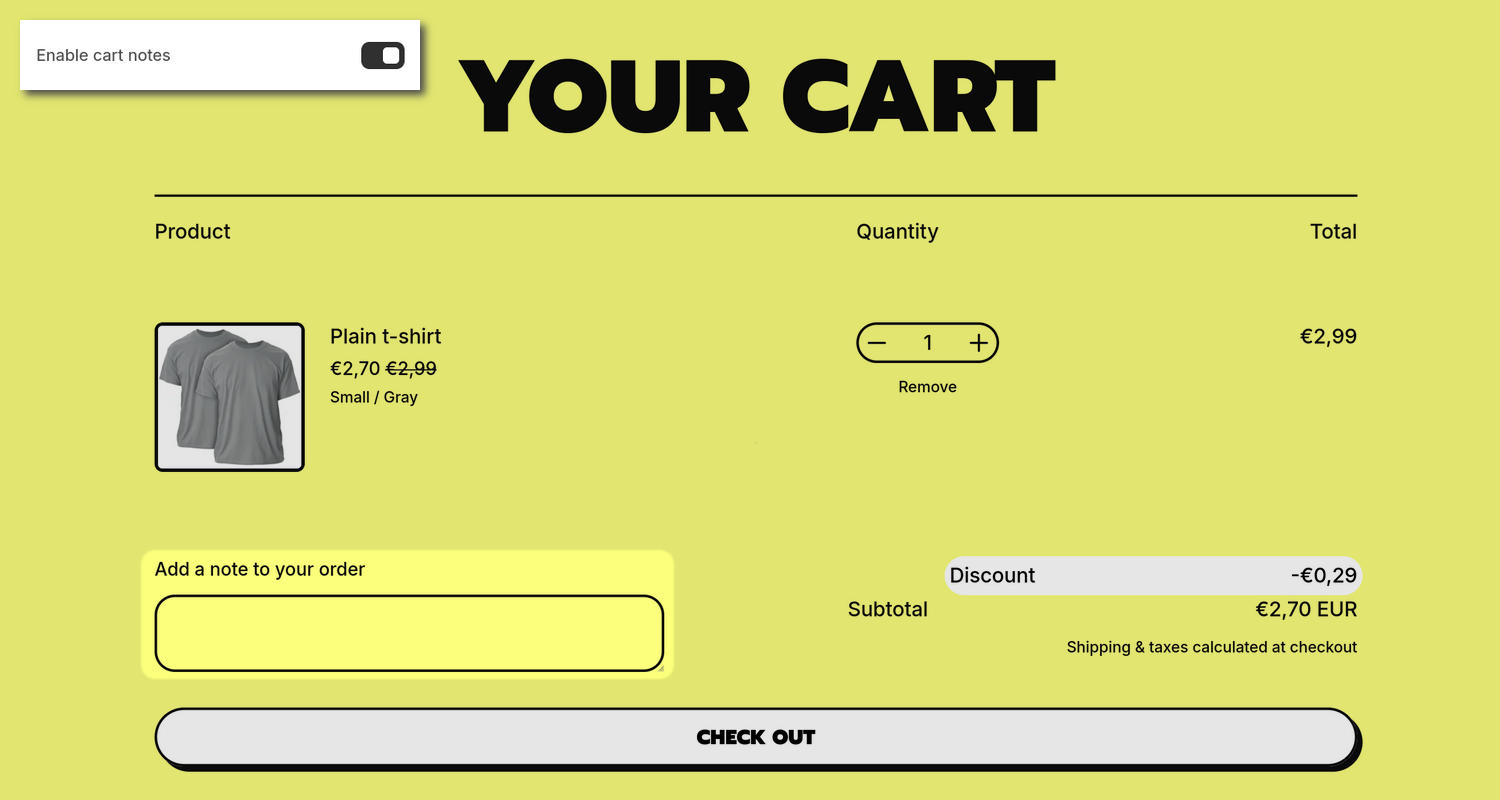
The previous image shows the home page of an example store. In the upper left, part of the Theme editor's Cart drawer section menu is displayed. The menu's Enable cart notes option is turned on. This option shows or hides a cart notes field in the section. For example, in the previous image, the section displays a cart notes field.
For general guidance with modifying sections, refer to Sections overview and Shopify help: Sections and blocks.
Configure the Cart drawer section
To configure your Cart drawer section:
In the Theme editor, use the theme templates dropdown at the top of the page to select the Cart page.
Note
The section is only available in the Cart page's Overlay area. To use the section, in Theme settings > Cart, set the Cart type option to Modal. The section is disabled when Cart type is set to Page in Theme settings.
From the side menu, select Cart drawer.
Select a setting described in the following table.
| Setting name | Description |
|---|---|
| Enable cart notes | Use the Enable cart notes option to show or hide a text entry field in the section that allows customers to add a note before they proceed to the checkout page. |
| Show product vendor | Use the Show product vendor option to show or hide the names of product vendors for products in the section. |
| Cart upsells > Enable cart upsells | Set the Enable cart upsells option to show or hide recommended products in the section's upsells area. |
| Cart upsells > Display on card | Set the Display on card option to show or hide a card behind the section's upsells area. Refer to Shopify help: Cards. |
| Cart upsells > Crop | Use the Crop option to select No crop, Landscape, Square, or Portrait. This setting controls the cropping style applied to product media displayed in the section's upsells area. |
| Cart upsells > Source | Use the Source option to select Complementary, Collection, or Product list. This setting specifies a type for the source of the products displayed in the section's upsells area. |
| Cart upsells > Max products | Use the Max products option to select 3, 4, or 6. This setting specifies the maximum number of products to display in the section's upsells area. To use this option, set the Source option to Collection or Complementary. |
| Cart upsells > Collection | Use the Collection picker to select a collection to use as a source of products to display in the section's upsells area. To use this option, set the Source option to Collection. |
| Cart upsells > Products | Use the Products picker to select products to display in the section's upsells area. To use this option, set the Source option to Product list. |
| Complementary cart upsells > Learn more (link) | Follow the Learn more link to access information about setting up product recommendations for complementary cart upsells. Products recommended via complementary cart upsells are based on the first product in the cart. To specify particular complementary products, install Shopify's Search & Discovery app. |
| Theme settings | If available, select Theme settings to access additional settings for the section. Refer to Section theme settings menu. |
| Custom CSS | Select Custom CSS. In the CSS field, enter custom CSS styles to apply only to the current section. Refer to Shopify help: Add custom CSS. To apply custom styles to your entire online store, refer to Theme settings > Custom CSS. |
| Remove section | Select Remove section to delete the section from the current page. |
Note
To connect a metafield to a setting that supports metafields, select the Connect dynamic source icon displayed beside the setting in the Theme editor.
To learn how to connect a metafield to a supported setting, refer to Shopify help: Connecting metafields to your theme by using the Theme editor.