

Appearance
Color swatches
This guide describes the Theme editor's Theme settings > Color swatches menu options.
Use the settings to specify how color swatches are displayed throughout your store. Color swatches are color icons that represent product color variants. A color swatch acts as a visual variant picker that allows customers to select a product color option. The menu includes settings for Shopify native swatches and for the theme's own color swatches.
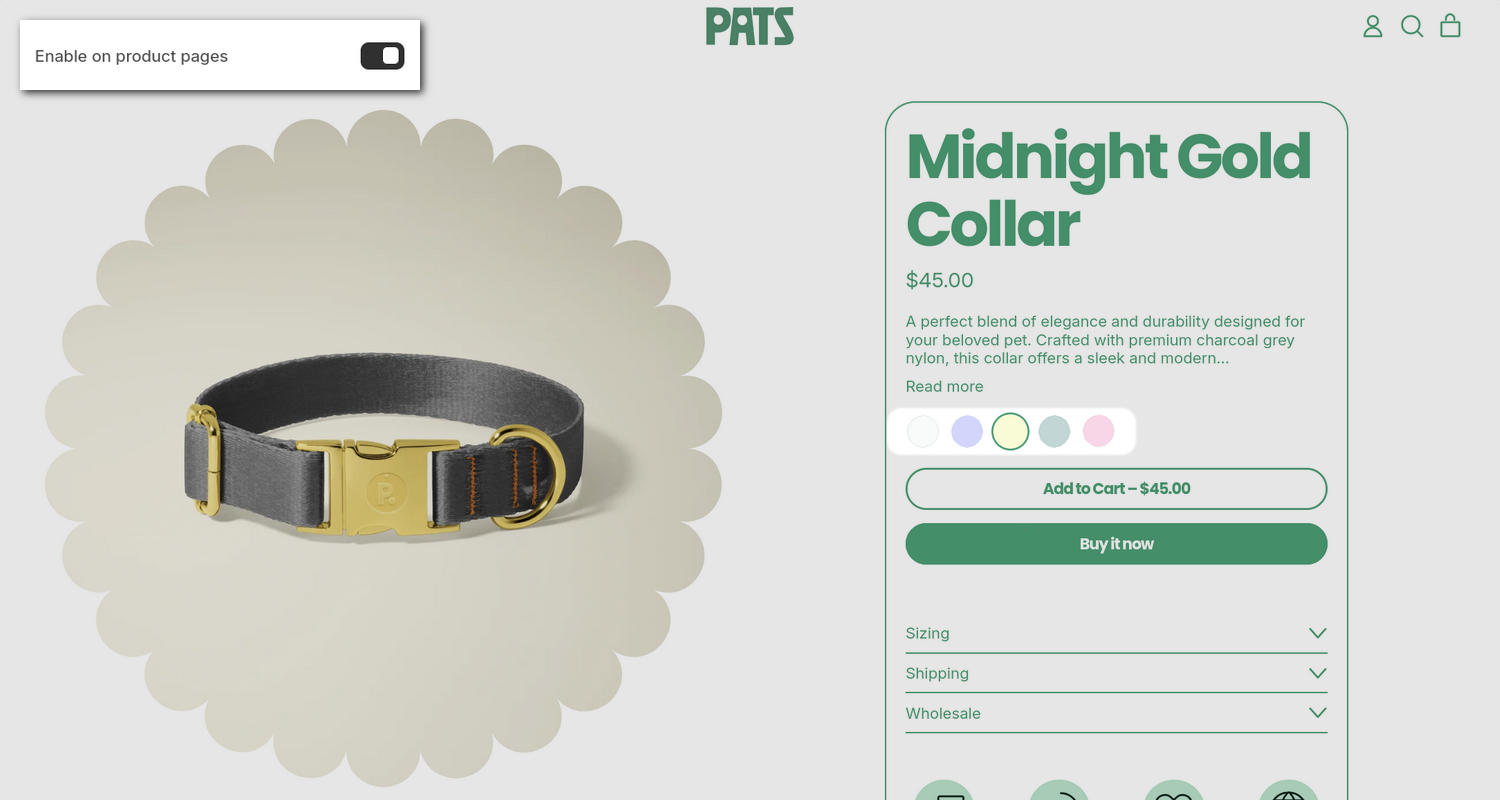
The previous image shows a store's Product pages section. In the upper left, part of the Theme editor's Theme settings > Color swatches menu is displayed. The menu's Enable on product pages option is enabled. With this setting enabled, color icons called swatches are displayed on Product pages. In the previous image, the color swatch icons are displayed in the center right area. Each swatch represents a product color variant. Store visitors select a color swatch to choose a product color.
For general guidance with adjusting a theme setting, refer to Settings overview and Shopify help: Theme settings.
Set up color swatches
To set up color swatches:
In the Theme editor, go to Theme settings > Color swatches.
Select a setting described in the following table.
| Setting name | Description |
|---|---|
| Enable on product pages | Use the Enable on product pages option to show or hide Shopify native swatches on your store's Product pages. To learn how to set up Shopify native swatches, refer to Shopify help: Adding color swatches using category metafields. |
| Enable in product tiles | Use the Enable in product tiles option to show or hide Shopify native swatches on product tiles. |
| Enable in filters | Use the Enable in filters option to show or hide Shopify native swatches inside the product filtering area on supported store pages. |
| Theme color swatches > Enable on product pages | Use the Enable on product pages option to show or hide Theme color swatches on your store's Product pages. To use this option, in the Product pages section for a product with color variants, add a Variant picker block. Then, inside the Variant picker block's settings menu, set Options style to Button. Support for theme color swatches is provided for compatibility and may be removed in the future. We recommend using Shopify native swatches going forward. Refer to our Set up color swatches guide. |
| Theme color swatches > Enable in product tiles | Use the Enable in product tiles option to show or hide Theme color swatches on product tiles. |
| Theme color swatches > Enable in filters | Use the Enable in filters option to show or hide Theme color swatches inside the product filtering area on supported store pages. To use this setting, install the Shopify Search & Discovery app. Use the app to create a filter that adds a product filtering option for Color. For collection sections, use a collection that contains products with color variants. |
Note
To connect a metafield to a setting that supports metafields, select the Connect dynamic source icon displayed beside the setting in the Theme editor.
To learn how to connect a metafield to a supported setting, refer to Shopify help: Connecting metafields to your theme by using the Theme editor.