

Appearance
Badges
This guide describes the Theme editor's Theme settings > Badges menu options.
Use the options to specify how badges, such as "on sale" and "sold out" badges, are displayed throughout your store.
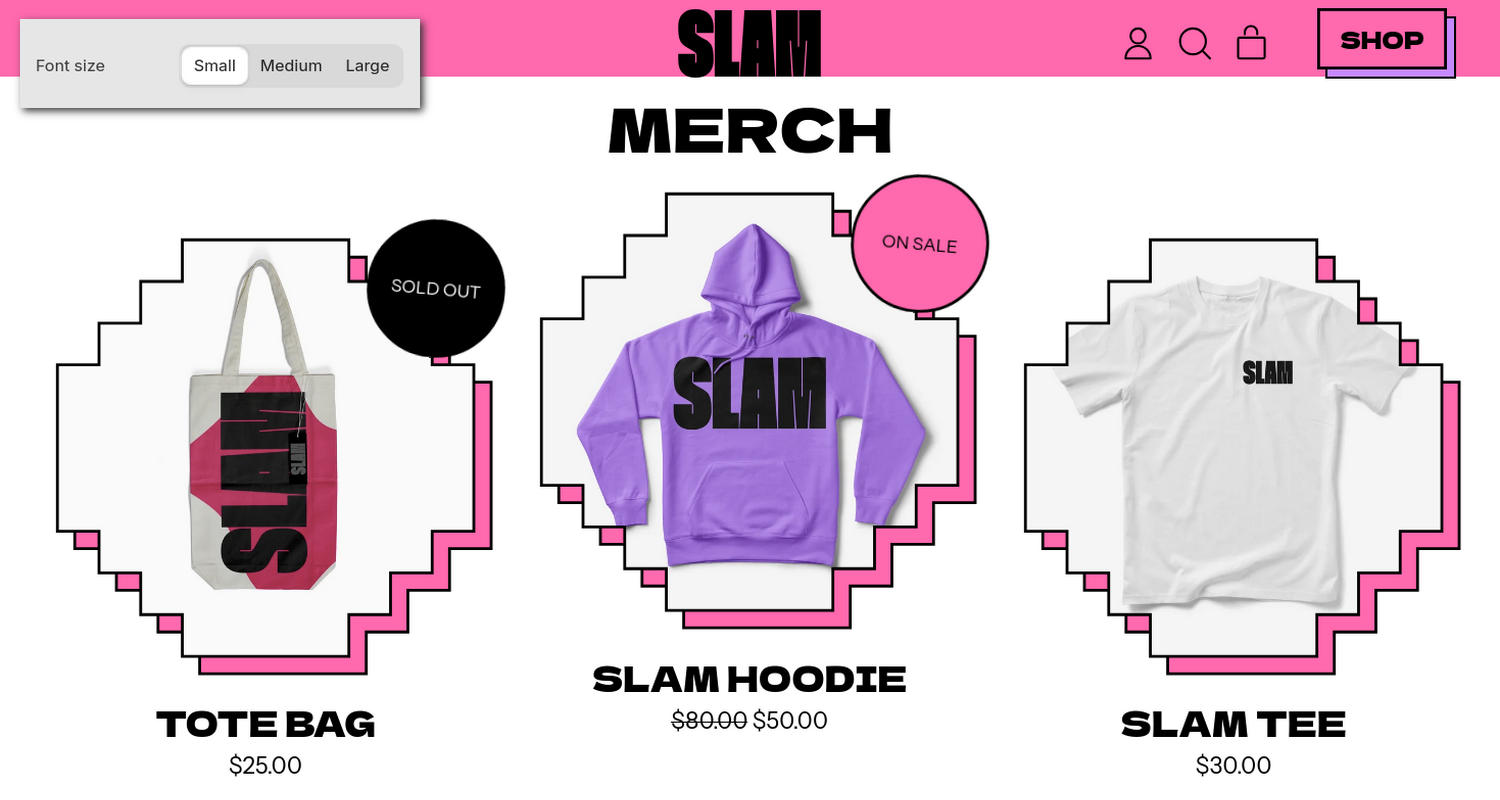
The previous image shows a Featured collection section on a store's home page. In the upper left, part of the Theme editor's Theme settings > Badges menu is displayed. The menu's Font size option is set to Small. Use this option to specify a font size for badges' text. The small font size is applied to the Sold out and On sale badges' text.
For general guidance with adjusting a theme setting, refer to Settings overview and Shopify help: Theme settings.
Set up badges
To set up badges:
In the Theme editor, go to Theme settings > Badges.
Select a setting described in the following table.
| Setting name | Description |
|---|---|
| Font size | Use the Font size options to set a font size for badges' text. The options are Small, Medium, or Large. |
| On sale and sold out badge shape | Use the On sale and sold out badge shape to choose a shape for "on sale" and "sold out" badges. Shapes theme offers more than 50 shapes across categories, such as circular, polygon, star, scalloped circle, square, and wide. Sale badges appear automatically when you reduce a product’s price. Sold out badges appear automatically when a product’s inventory reaches 0. Displays on product tiles and product price blocks. |
| On sale badge display | Use the On sale badge display options to specify the type of "on sale" badge to display. The options are: On sale text, Percentage off, or Amount off. These options apply to products with a sale price that uses Shopify’s compare-at price. Refer to Shopify help: Setting sale prices for products. Note that products with prices or sale prices that differ across variants default to "On sale" badge text. Discount values are shown rounded down to the nearest whole number. |
| Metafield badge shape | Use the Metafield badge shape to choose a shape for custom badges. Shapes theme offers more than 50 shapes across categories, such as circular, polygon, star, scalloped circle, square, and wide. A custom badge displays a metafield value inside the badge. Refer to Show custom sticker badges on product tiles. |
Note
To connect a metafield to a setting that supports metafields, select the Connect dynamic source icon displayed beside the setting in the Theme editor.
To learn how to connect a metafield to a supported setting, refer to Shopify help: Connecting metafields to your theme by using the Theme editor.