

Appearance
Add comparative scales to product pages
This guide describes how to set up a Comparative scale (block) on your store's product pages.
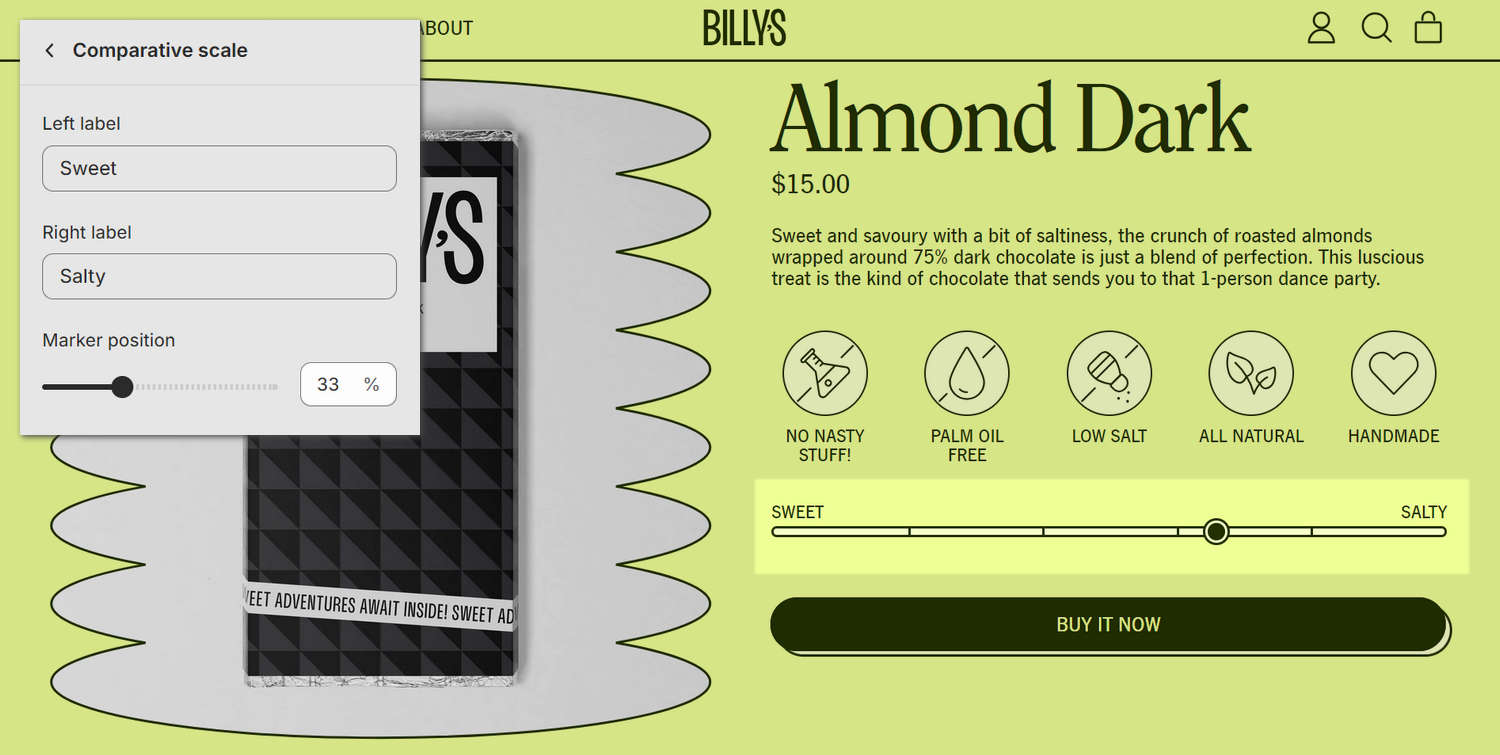
The previous image shows a Featured product section on a store page. The section contains a Comparative scale block above the Buy it now button. In the upper left, part of the Theme editor's block settings menu is displayed. The menu's Marker position slider is set at 60. This value is applied to the block's marker position on the right. The marker position illustrates the relationship between the product's Sweet and Salty features.
You can add a Comparative scale block to compare two variable product features. For example, in the following image, the Comparative scale shows that the product is more Salty than Sweet.

Add a Comparative scale block
You can add a Comparative scale block to the Featured product and Product sections.
To add a Comparative scale block to a supported product section:
In the Theme editor, at the top of the page, use the dropdown to select a template that contains a Featured product or Product section.
From the side menu, expand the section's settings menu.
To configure an existing block, select a Comparative scale block.
To add a new block, select Add block, choose Comparative scale, and then select the block you added.
Apply a block setting described in the following table.
| Block setting name | Description |
|---|---|
| Labels > Left label | In the Left label field, enter text to display as a label for the left side of the scale. |
| Labels > Right label | In the Right label field, enter text to display as a label for the right side of the scale. |
| Labels > Uppercase | Use the Uppercase option to turn on or off uppercase text for the block's labels. |
| Marker > Marker position | Adjust the Marker position slider to set a value between 1 and 100. The value applies to the scale's marker position in the block. A value of 1 displays the marker on the left side of the scale; a value of 100 displays it on the right side. |
| Marker > Dynamic marker position | In the Dynamic marker position field, enter a metafield key name to use as the source for the block's value. The value applies to the scale's marker position in the block. Adding a dynamic source overrides the Marker position slider. Refer to Add dynamic sources to comparative scales. |
| Card > Display on card | Use the Display on card option to show or hide a card behind the block. Adjacent blocks set to Display on card are merged into a single card. Refer to Shopify help: Cards. |
| Remove block | Select Remove block to delete the block from the section. |
Note
To connect a metafield to a setting that supports metafields, select the Connect dynamic source icon displayed beside the setting in the Theme editor.
To learn how to connect a metafield to a supported setting, refer to Shopify help: Connecting metafields to your theme by using the Theme editor.
Add dynamic sources to comparative scales
By default, you set the value for a Comparative scale block using the block's Marker position slider. The value sets the position of the scale's marker in the block. If your store has many products with different values, the values can be set by using dynamic sources with product metafields.
Comparative scale blocks include the option to add values from a dynamic source. Adding a dynamic source overrides any value set by the Marker position slider.
To set up a new dynamic source, refer to Create metafields for comparative scales and Shopify help: Metafields.
To add a dynamic source to a Comparative scale block:
In the Theme editor, open a section that contains a Comparative scale block.
In the block settings menu, beside the Dynamic marker position field, select the Connect dynamic source icon, and then choose a metafield.
For example, the following image shows the available metafields for a Comparative scale block in a Featured product section.
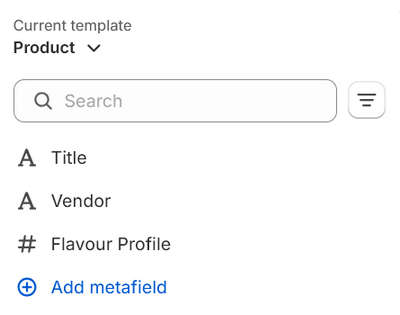
To set up a new dynamic source, select Add metafield. Refer to Create metafields for comparative scales and Shopify help: Metafields.
Select Save from the Unsaved changes menu at the top of the page.
Create metafields for comparative scales
To create a metafield to use as a dynamic source for Comparative scale blocks:
In your Shopify admin, select Settings > Metafields and metaobjects > Products.
On the Product metafield definitions page, select Add definition, and then add the following information:
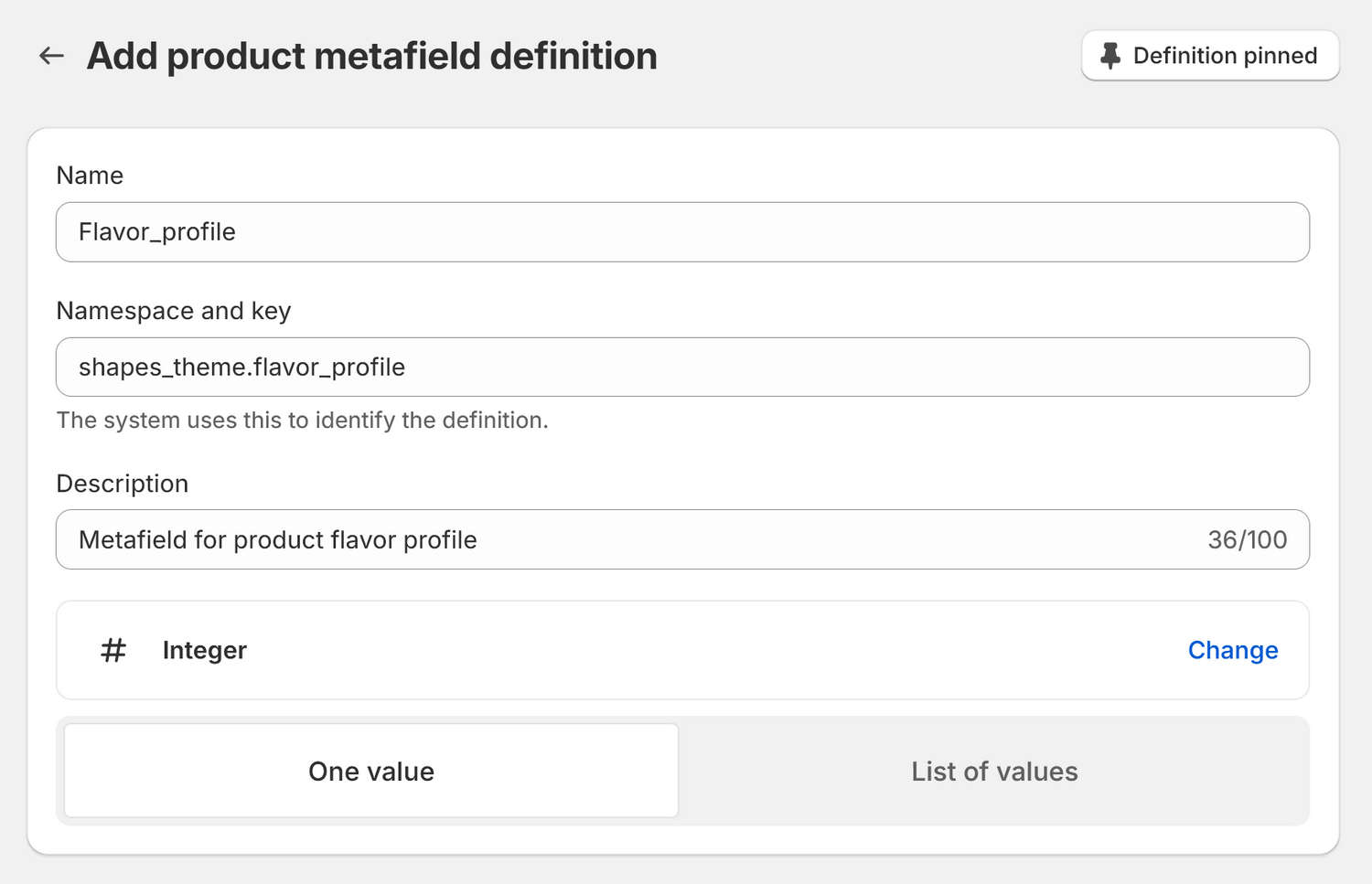
- In the Name field, enter a name for the metafield. For example, enter Flavor-profile.
- Below the Name field, select the auto-filled
custom.flavor-profileelement. In the Namespace and key field, entershapes_theme.flavor-profileinstead ofcustom.flavor-profile. - Set the Type option to One value, then select Integer from the Select type list.
- Optional: Select Add description, and then enter text in the Description field to describe the metafield. For example, enter Metafield for product flavor profile.
Confirm that your completed metafield definition is similar to the example in the following image.
Select Save from the Unsaved changes menu at the top of the page.
Set values for a product metafield
To set values for a product metafield:
In your Shopify admin, select Products, and then select a product from the product list.
In the Product metafields area, locate a metafield, and then enter the required values.
For example, in the following image, the Flavor-profile metafield has the value
60. Note that the value is a whole number, without the percentage symbol%.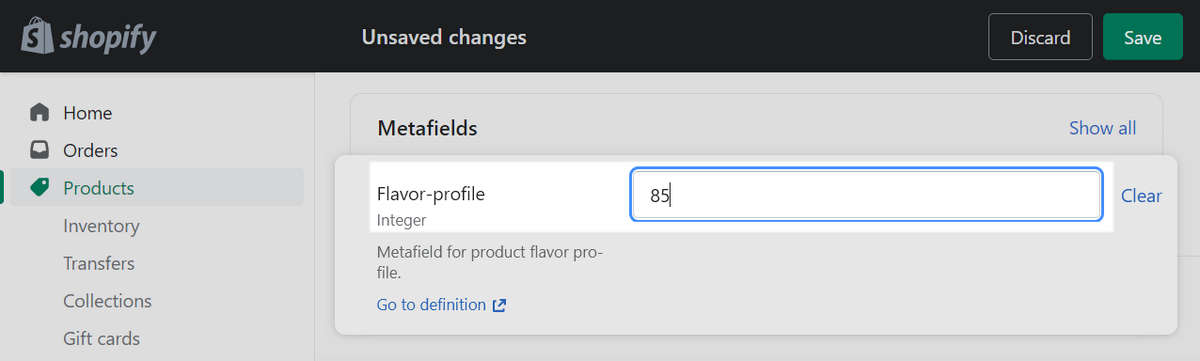
Select Save.
Add the metafield as a dynamic source into a Comparative scale block. Refer to Add dynamic sources to comparative scales.